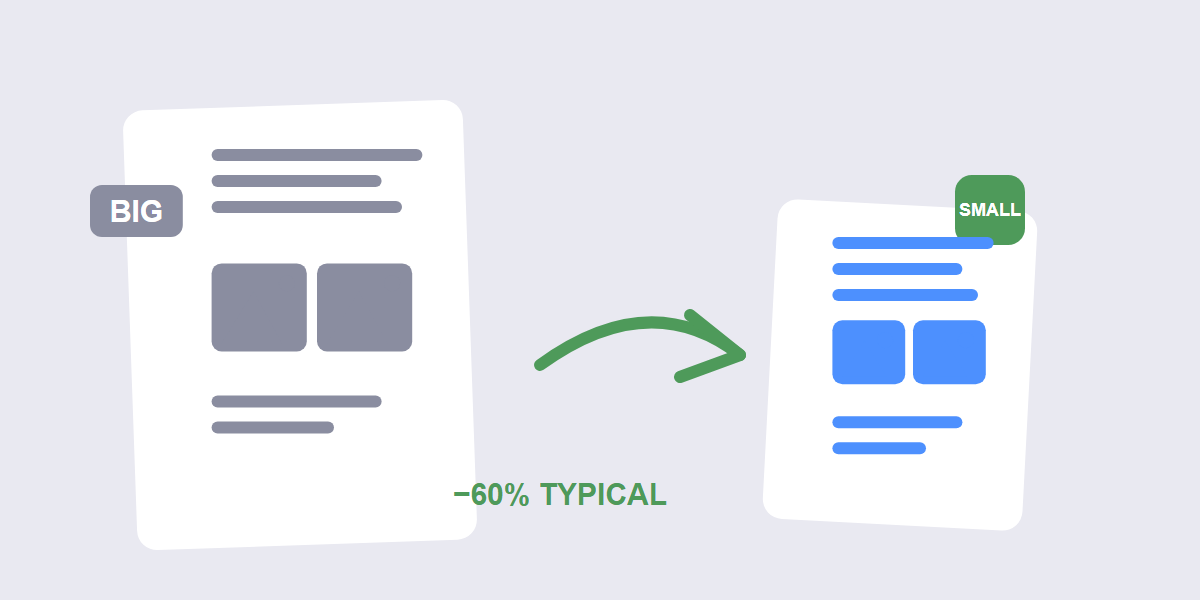
Quick answer: open a free Compress PDF tool, drop your file in, pick a compression level, and download â most PDFs shrink 30â70% with text staying sharp. What actually makes a PDF large is almost always images; fonts and layers add the rest.
Knowing why a PDF is big changes which fix works. A 40 MB scanned report and a 40 MB design portfolio need different treatment, and a generic “compress” button doesn’t tell you which case you’re in. This guide covers the causes, the settings, and what compression can and can’t do.
What makes a PDF large
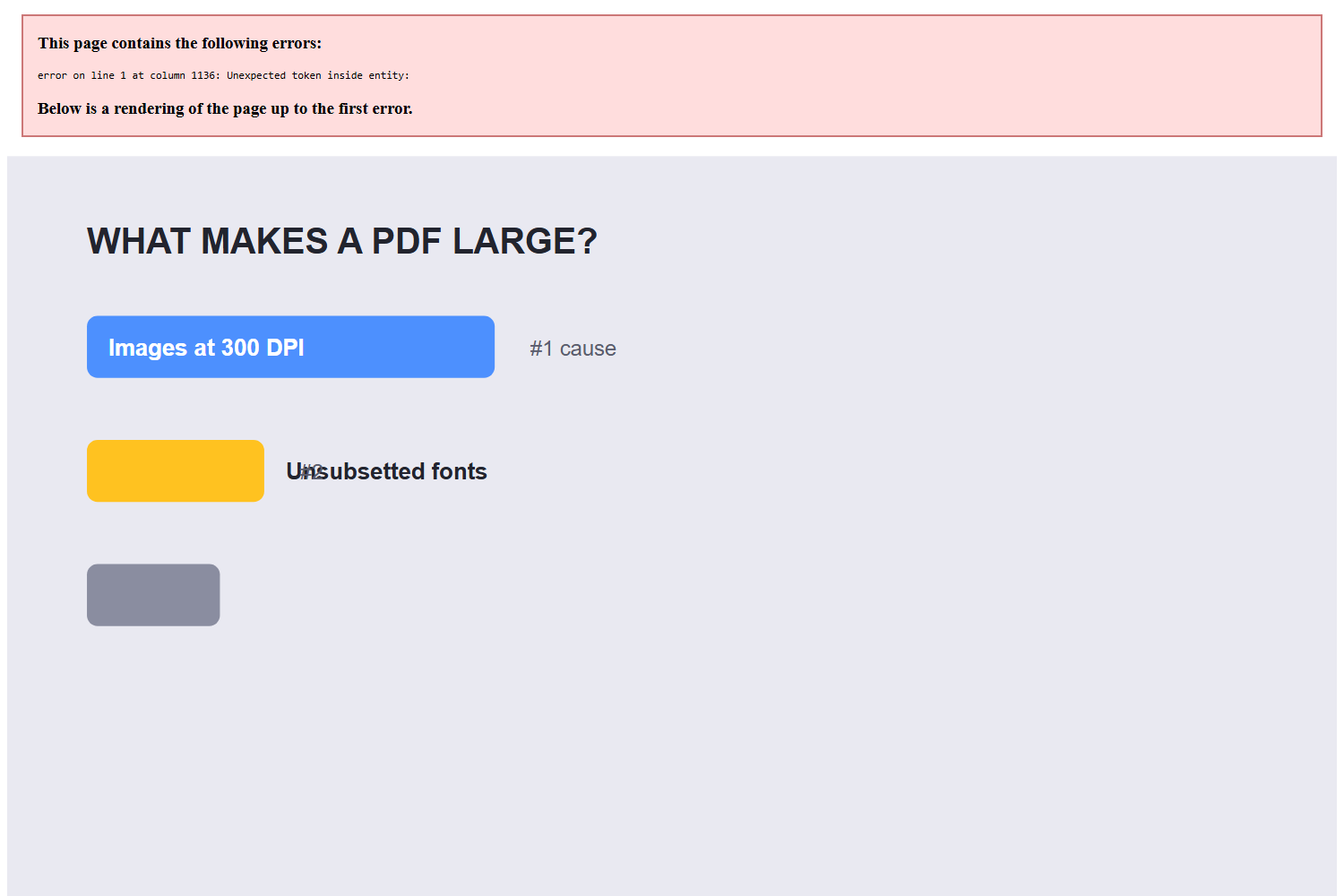
Four things, in rough order of how much space they take:
| Cause | Typical share of bloat | Can compression fix it? |
|---|---|---|
| High-resolution images | Usually the biggest â 300 DPI photos embedded at full size | Yes â downsampling is where the savings are |
| Unsubsetted fonts | A full font family can add several MB | Partially â subsetting helps |
| Layers and transparency | Design-tool exports (InDesign, Canva) stack them | Yes â flattening helps |
| Metadata and unused objects | Small but real | Yes â automatic cleanup |
Scanned documents deserve a special mention: a 50-page scan at 300 DPI is essentially 50 full-resolution photos in a trench coat. Scans compress dramatically â often 70â90% â because their images can be aggressively downsampled and still read perfectly.
How to compress a PDF step by step
- Open the tool. Go to the free Compress PDF tool and drop your file in â processed in your browser, no uploads.
- Pick a compression level. Low for documents where text crispness matters; higher for scans and image-heavy files. The next section helps you choose.
- Compress and compare. Download the result and open both versions side by side. Check the pages with the smallest text â that’s where over-compression shows first.
If the compressed version looks wrong at your chosen level, run it again from the original at a gentler setting. Never compress an already-compressed file â quality damage compounds.
Which compression level to pick
The right level depends on what the PDF contains and where it’s going:
- Scanned documents â strong compression. Scans have enormous headroom; even aggressive downsampling keeps them perfectly readable, and the savings are dramatic.
- Text reports â moderate compression. Text is vector-based and shrinks little; the savings come from any embedded images. Keep quality high â text pages are small anyway.
- Design portfolios â light compression. Brand-heavy documents with gradients and fine detail need the most care. If the file must shrink more, reduce image resolution at the source (the design tool) instead of squeezing the PDF harder.
- Email attachments â match the limit. Under ~15 MB of files fits a 20 MB Outlook message; compress until you’re under, then stop.
The professional habit that saves the most: fix the size at the source. Exporting from the design tool at sensible image resolution produces a small PDF before compression even starts â compression then polishes rather than rescues.
What compression can’t fix
Compression removes redundancy and downsamples images. It can’t make a 3-page PDF small if those pages contain ten full-resolution photos you refuse to downsample â the images ARE the content. And it can’t fix a file that’s “large” only because it contains 50 pages of scans; that’s the actual content size, and aggressive compression is exactly right for it.
Related jobs this pairs well with: if the PDF also needs page reordering before you send it, Reorder PDF handles that; and if it’s really several documents stapled together, Split PDF divides it so each piece is smaller on its own.
FAQ
How do I compress a PDF for free?
Open the free Compress PDF tool in your browser, drop the file in, pick a compression level and download. No signup or watermark, and the file is processed on your device â safe for confidential documents.
How much can a PDF be compressed?
Depends on the content: image-heavy and scanned PDFs often shrink 50â90%; text-only reports may shrink just 10â20% because text is tiny to begin with. The more images a PDF contains, the more compression has to work with.
Does compressing a PDF reduce quality?
At moderate levels, no visible change â text is vector-based and images are downsampled below where the eye notices. At aggressive levels, image-heavy pages soften. Always compress from the original and compare the result against it before sending.
Why is my PDF so large when it has no images?
Unsubsetted embedded fonts are the usual suspect â a document using several font weights can embed megabytes of glyphs. Flattening and re-saving through a compressor strips the unused ones. Scanned-then-OCR’d documents also carry a hidden image layer under the text.
How do I compress a PDF to under 1 MB?
Use strong compression and, if the file is a scan, let it downsample hard â scans routinely hit under 1 MB. For text documents with photos, you may need to shrink the embedded images at the source first; compression alone can’t always reach 1 MB from 20 MB without visible softening.
Is compressing a PDF safe for confidential files?
With a browser-based tool, yes â the PDF is processed locally and never uploaded, so confidential content stays on your device. That’s the safest route for contracts, medical documents and anything you wouldn’t email to a stranger.
