Merging PDFs sounds like it should be foolproof: upload a few files, combine them, download one document. Most of the time it is. The mistakes that actually happen are almost always about what goes in before you hit merge, not the merge itself, things like page order, mismatched page sizes, or a password-protected file that silently breaks the process. Here’s how to merge PDFs properly and sidestep the parts that trip people up.
What Actually Happens When You Merge PDFs
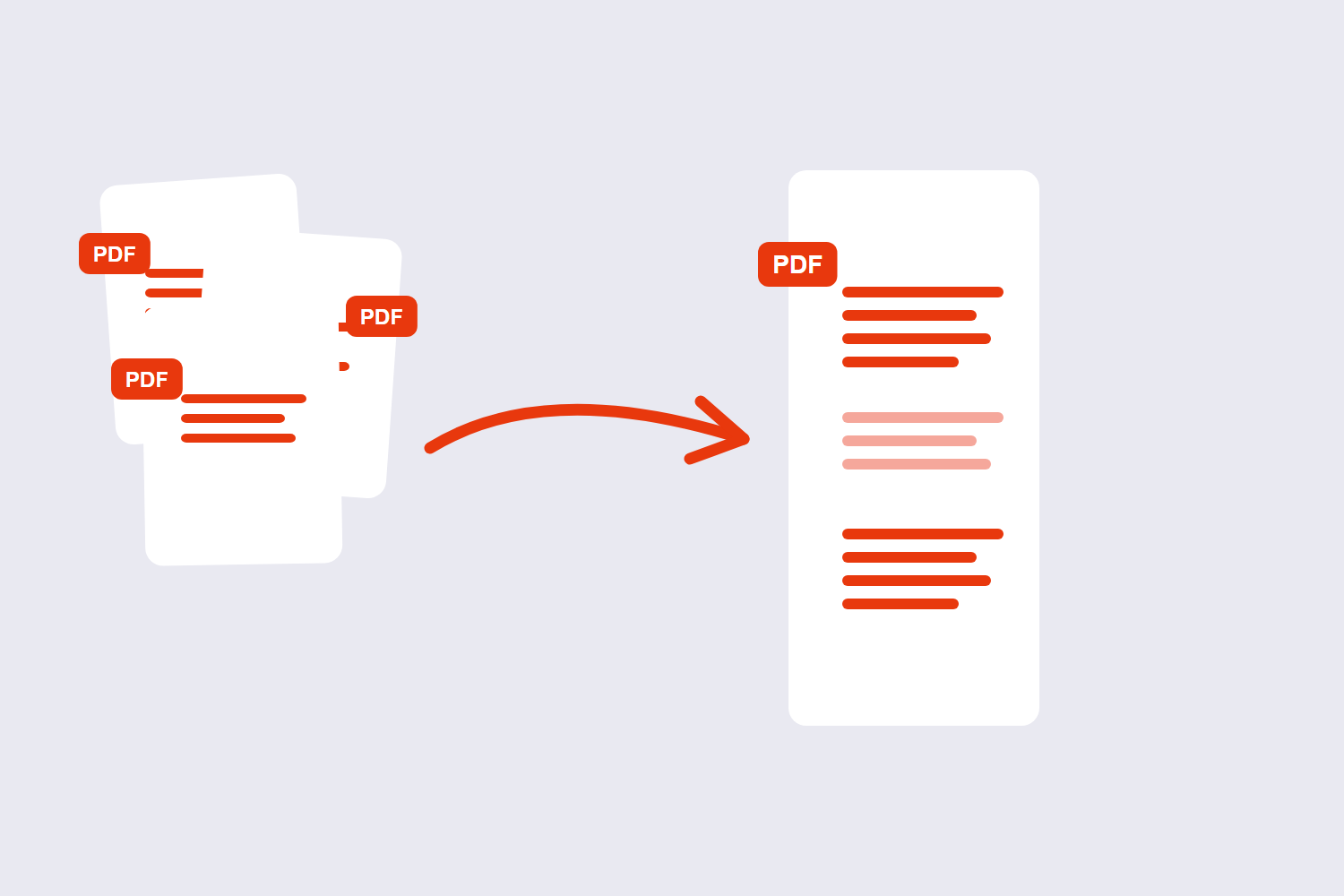
A properly built merge tool doesn’t redraw or flatten your pages. It stitches the original page content together, in the order you specify, into a single file. Text stays selectable, links stay clickable, and image quality stays exactly as it was in each source file.
This matters because there’s a common workaround that looks similar but isn’t: printing multiple files to a single PDF using a “print to PDF” driver. That approach re-renders every page as a flattened image, which can quietly reduce text sharpness and bloat file size in the process. A dedicated merge tool avoids this entirely by working with the underlying PDF structure directly.
Merge, or Keep the Files Separate?
Merging isn’t always the right move. It’s worth pausing on this before uploading anything.
- Merge when the documents will be read in sequence. A multi-part application, a report with attached exhibits, or study materials meant to be read start to finish all benefit from becoming one continuous file.
- Keep files separate when someone needs to reference them independently. A project folder containing specs, budgets, and design files is often more usable left as individual documents (optionally zipped together) than merged into one long PDF someone has to scroll through to find the section they need.
The rule of thumb: if the recipient will read it front to back, merge it. If they’ll jump to one specific document, don’t.
How to Merge PDF Files Step by Step
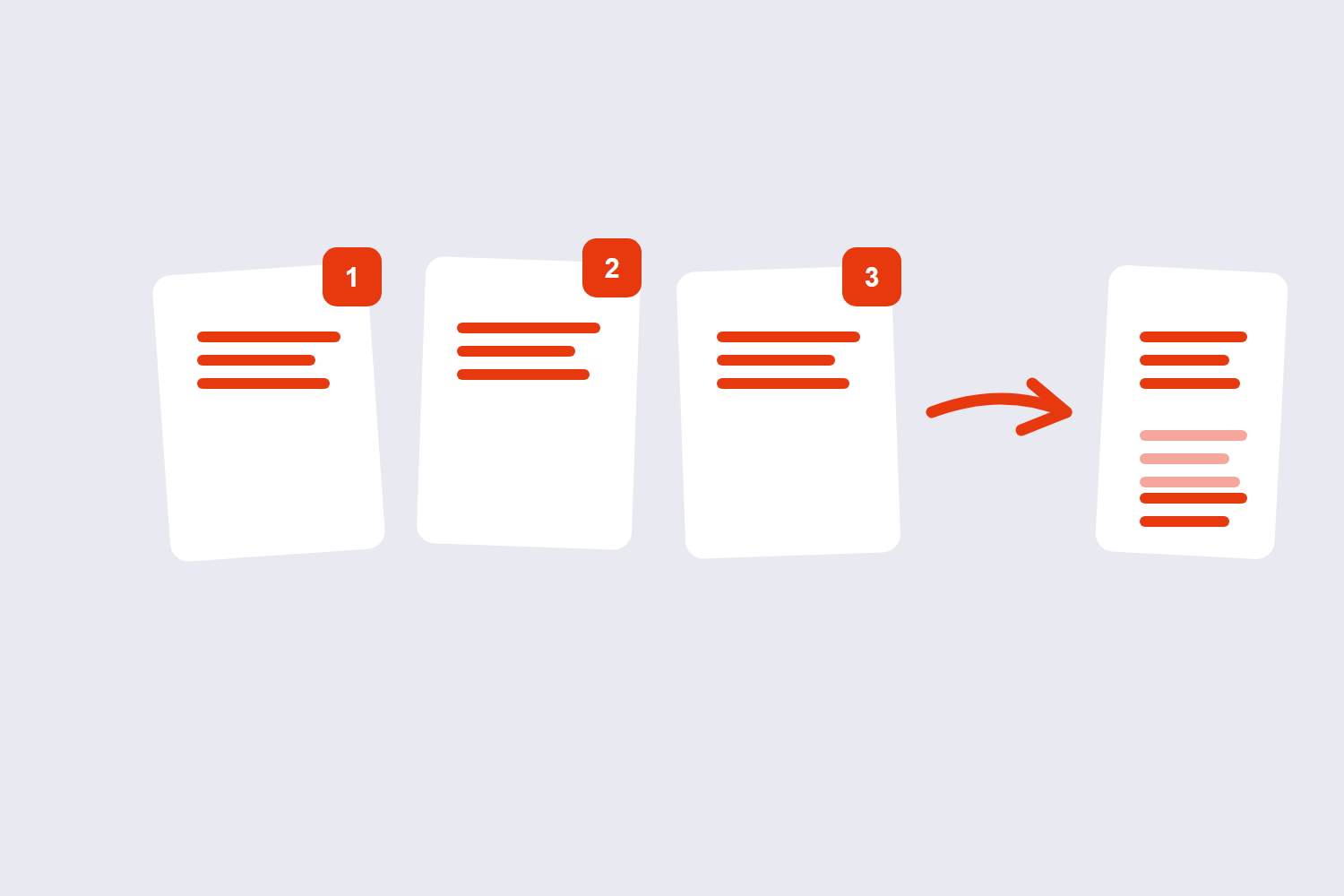
Step 1: Gather and rename your files
Before uploading anything, rename your files with a leading number if the final order matters, like 01-cover.pdf, 02-report.pdf, 03-appendix.pdf. Many merge tools let you sort alphabetically, and numbered filenames make that sort produce exactly the order you want without manual dragging.
Step 2: Check for password-protected files
If any file in your batch has an open password, it typically needs to be unlocked before it can be merged. Run it through Unlock PDF first if you have the password and permission to remove it, otherwise the merge will likely fail or skip that file.
Step 3: Upload and set the order
Open Merge PDF and upload your files. Drag them into the order you want in the final document. This is the step where most ordering mistakes happen, so double-check it before continuing rather than after downloading.
Step 4: Merge and review the result
Run the merge, then open the resulting file and scroll through it fully rather than just checking the first and last pages. It’s easy to miss a misplaced section in the middle of a long document.
Step 5: Clean up if needed
If a page ended up in the wrong place or shouldn’t be there at all, you don’t need to redo the whole merge. Reorder PDF Pages fixes sequencing issues, and Delete PDF Pages removes anything that shouldn’t have made it into the final file.
Real-World Scenarios Where Order and Structure Matter
- Job or grad school applications. A cover letter, resume, transcripts, and writing samples often need to be one file in a specific order. Getting the sequence wrong, like a transcript landing before the cover letter, is a small thing that still looks careless to whoever’s reviewing it.
- Expense reports and reimbursements. Combining receipts into a single PDF in date order makes them far easier for a reviewer to check against a summary sheet than a folder of separately named files.
- Real estate and legal document packets. Lease agreements, disclosures, and signed addenda are frequently expected as one continuous file, in a specific order that mirrors how the transaction happened.
- Combining scanned pages with a digital cover page. A scanned, signed signature page often needs to sit inside an otherwise digital document, which means merging a scan with existing PDF pages rather than starting from PDFs alone.
In each case, the actual merging step is the easy part. What separates a clean result from a messy one is deciding the right order and structure before you start uploading files. Splitting or merging rewrites no image data. The pages are copied as objects and the new file gets a fresh cross-reference table, so a 100 MB document splits into parts that together occupy roughly the same 100 MB.
Merging PDFs and Images Together
It’s common to end up with a mix of formats: a few pages already as PDFs, plus a photo of a signed page or a scanned receipt as a JPG or PNG. Rather than converting each image to PDF separately first, a tool like Merge PDF & Image combines both formats directly into a single document in one pass. This is worth knowing about specifically because plenty of merge tools only accept PDFs, which means an extra conversion step you don’t actually need if the right tool handles both formats at once.
Handling Different Page Sizes and Orientations
If you’re merging files that mix page sizes (like A4 and US Letter) or orientations (portrait and landscape), the result can look inconsistent, with page dimensions visibly shifting as you scroll through the document. Some merge tools offer an option to normalize all pages to a single size during the merge. If yours doesn’t, or you want to keep dimensions exactly as they were, know this going in so the result doesn’t come as a surprise; a visibly inconsistent page size isn’t a bug, it’s a reflection of what was in the original files.
What Happens to Bookmarks and Metadata
This is one of the least consistent parts of merging across different tools, so it’s worth checking rather than assuming. Some merge tools carry bookmarks from each source file into the combined document, sometimes nested under the original filename. Others don’t preserve them at all, since combining separate bookmark trees from multiple documents can create structural conflicts.
If navigation matters for your merged document, check the result after merging rather than assuming bookmarks came through intact. If they didn’t, and you need a navigable table of contents, that’s typically something to add back in afterward with a PDF editor rather than something the merge step handles automatically.
Best Practices for Merging PDFs
- Name files for predictable sorting. Leading numbers remove the guesswork and reduce manual reordering.
- Unlock protected files first. Handle passwords before merging, not during, to avoid a failed or incomplete merge.
- Review the full document, not just the ends. Scroll through the entire merged file at least once before considering it final.
- Merge before you compress, not after. If file size is a concern, combine everything first, then run the finished document through a compression step, rather than compressing each file individually beforehand.
- Keep your originals. Hold onto the individual source files until you’re confident the merged version is correct and complete.
- Think ahead if the result will be printed double-sided. A source file with an odd number of pages can shift everything that follows it onto the wrong side of the sheet once printed double-sided. If that matters for your document, check page counts before merging, or plan to insert a blank page after any odd-numbered section.
Common Mistakes to Avoid
- Uploading files in the wrong order and not checking before merging. Fixing page order after the fact is easy with the right tool, but it’s still extra work that a quick check beforehand avoids entirely.
- Assuming password-protected files will merge normally. An unhandled password is one of the most common reasons a merge silently fails or skips a file.
- Merging documents that should have stayed separate. If the recipient needs to reference one part independently, a single long merged file can make their job harder, not easier.
- Not checking page sizes when merging mixed-format documents. A merge combining A4 and Letter pages, or portrait and landscape pages, can look inconsistent if you don’t account for it ahead of time.
- Trusting that bookmarks carried over without checking. Navigation structure is one of the more inconsistent aspects of merging across different tools, so confirm it rather than assume it.
File Mode vs. Page Mode
| Approach | What It Does | Best For |
|---|---|---|
| File Mode (merge whole files) | Combines entire documents, start to finish, in the order you set | Combining complete reports, applications, or chapters |
| Page Mode (select specific pages) | Lets you choose individual pages or page ranges from each file to include | Pulling only relevant sections from longer source documents |
If you only need a few pages from a longer document rather than the whole thing, check whether your merge tool supports selecting specific pages. Inserting pages keeps both documents’ page sizes independently. Adding a Letter page (612 × 792 points) into an A4 document (595 × 842 points) is allowed and common, but the resulting file is mixed-size — which some printers handle badly, so it is worth normalising afterwards. It saves a separate splitting step beforehand.
Frequently Asked Questions
Does merging PDFs reduce quality?
No, not when done with a proper merge tool. The original page content, including text sharpness and image resolution, carries over unchanged. Quality loss during merging usually comes from a different process entirely, like printing files to a single PDF through a print driver, which flattens every page into an image.
Can I merge password-protected PDFs?
Generally, a file with an open password needs to be unlocked first before it can be merged. If you have the password and the right to remove it, unlock the file, merge it, and reapply protection to the finished document afterward if needed.
Will my bookmarks and table of contents carry over after merging?
It depends on the specific tool, and behavior varies. Some tools preserve bookmarks from each source file, sometimes nested under the original filename; others don’t carry them over at all due to conflicts between separate bookmark structures. Check the merged result directly rather than assuming either way.
Can I merge PDFs with different page sizes or orientations?
Yes, but the result can look visually inconsistent as dimensions shift from page to page, since the merge preserves each page as it originally was unless the tool offers an option to normalize sizes. Check for that setting if a uniform look matters for your document.
What order will my merged PDF appear in?
Whatever order you set before merging. Every tool let you drag files into position or sort them alphabetically by filename, so naming files with leading numbers is a reliable way to guarantee a specific order without manual rearranging.
How do I fix a mistake after I’ve already merged my PDFs?
You don’t need to redo the entire merge. A page reordering tool can fix sequencing issues directly in the merged file, and a page deletion tool can remove anything that shouldn’t be there, without touching the rest of the document.
Is there a limit to how many PDFs I can merge at once?
This depends on the specific tool you’re using; some cap the number of files or total size per merge and others don’t. If you’re combining a very large number of files, check the tool’s stated limits, or merge in smaller batches and combine the results if needed.
Final Thoughts
Merging PDFs is genuinely simple once the inputs are right: files named for predictable order, passwords handled ahead of time, and a full read-through of the result before calling it done. Most of what goes wrong happens before the merge itself, not during it. When you’re ready, Merge PDF combines your files in a few clicks, and Reorder PDF Pages is there if you need to fix the order afterward without starting over.
