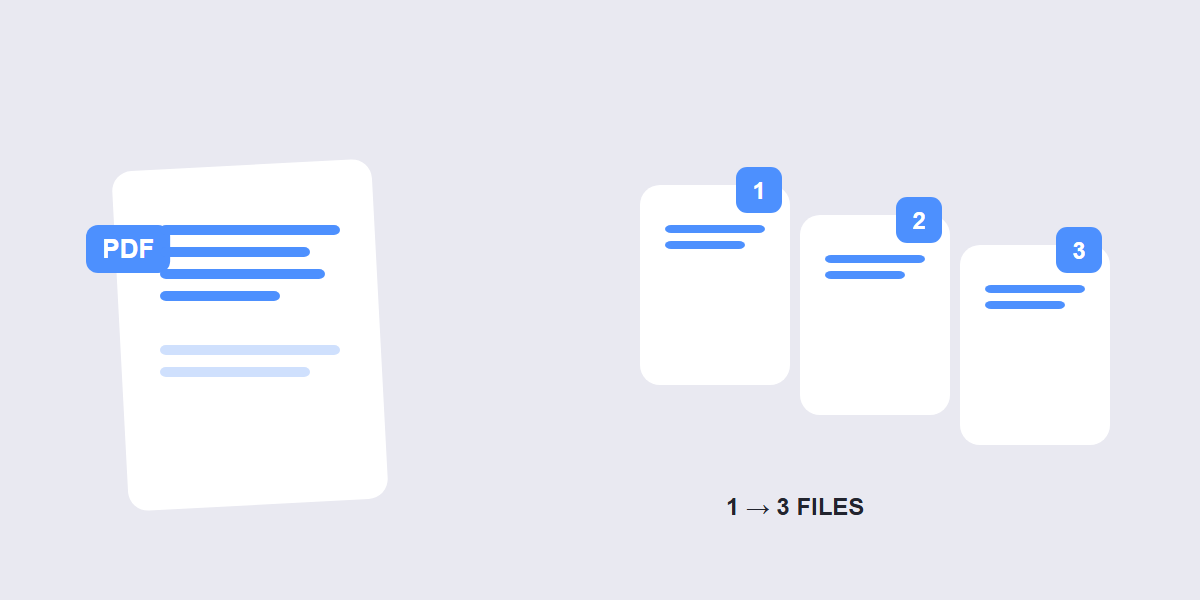
Quick answer: open a free split tool, drop your PDF in, choose how to divide it â page ranges, fixed intervals or one file per page â and download the results. Splitting takes under a minute, and browser-based tools never upload your document anywhere.
There are three reasons you’d split a PDF: extracting one section to send separately, breaking a long report into chapters, or dividing a merged scan back into its original documents. Each needs a slightly different split mode, and this guide covers all of them plus the mistakes that make people split twice.
Three ways to split a PDF
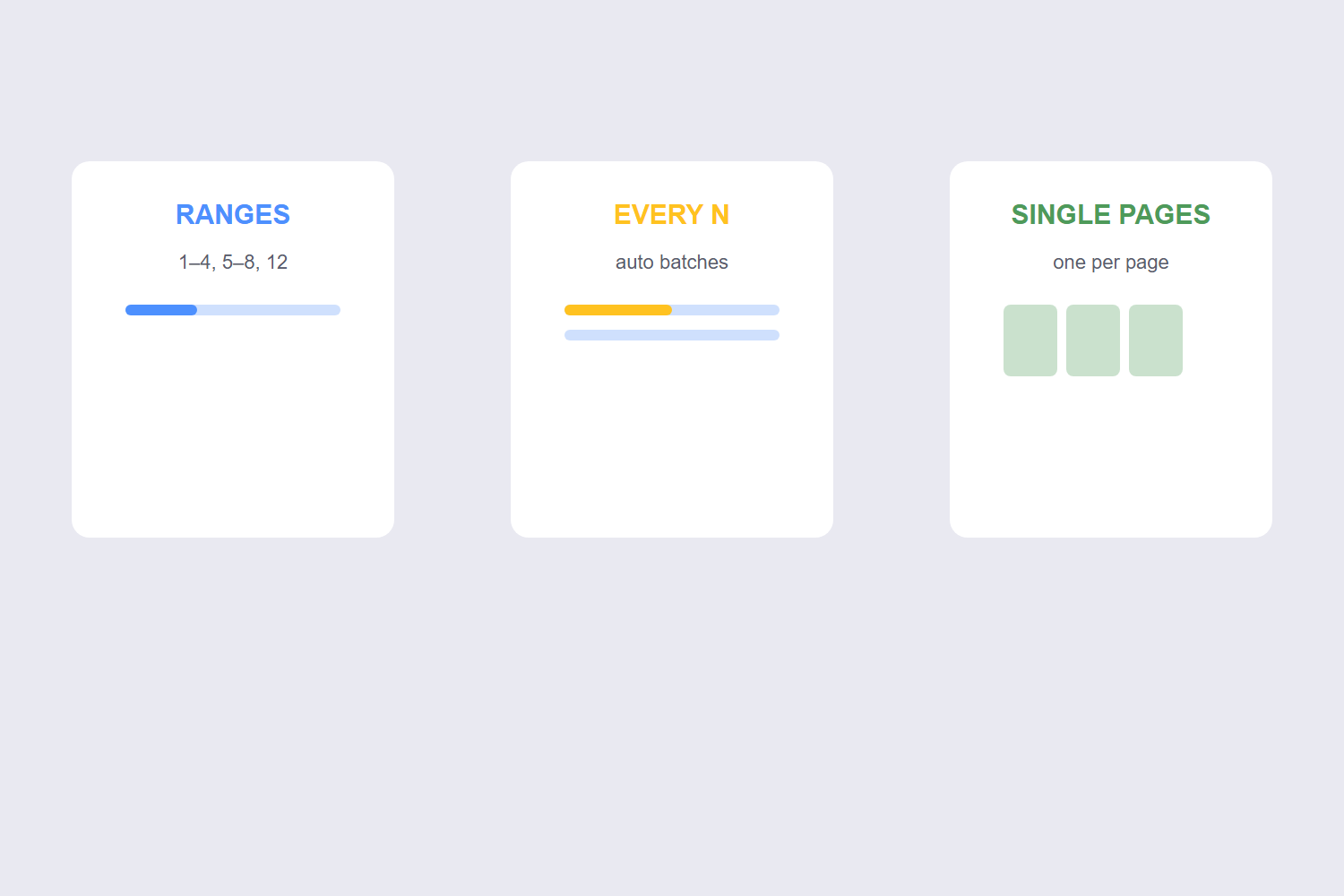
A good split tool gives you three modes, and picking the right one is the difference between one clean job and a mess of re-downloads:
| Mode | What it does | Best for |
|---|---|---|
| Custom ranges | You type the page ranges (1â5, 6â9, 12) | Chapters, sections, pulling specific pages |
| Fixed intervals | Splits every N pages automatically | Uniform batches â invoices, forms, scans |
| Every page | Each page becomes its own file | Individual certificates, one-page docs |
Adobe’s splitter caps free use at around 20 output files with 19 divider lines â the browser-based tools below don’t impose that kind of limit, and they process locally instead of uploading.
How to split a PDF step by step
- Open the tool. Go to the free Split PDF tool and drop your file in. It works on any device and nothing is uploaded to a server.
- Pick your mode. Choose custom ranges (type them, like 1â4 and 5â8), fixed intervals (every 2 pages, every 5 pages) or extract single pages.
- Split. Click the button â the split happens in your browser in seconds.
- Download. You’ll get one file per range, named in order. Need the pieces back together later? The Merge PDF tool reverses the job.
Which split mode fits your job
If you’re sending one section to a client, custom ranges â type exactly the pages, download, done. If you scanned a stack of 30 one-page invoices into one PDF, fixed intervals (every 1 page) is faster than typing 30 ranges. If someone sent you a merged file and wants each original document back, split by ranges at the document boundaries â or better, ask them to send the originals, because merging is lossless but their originals may have bookmarks this process won’t carry.
One practical habit: split from the original, never from a copy of a copy. Splitting doesn’t degrade quality (pages are copied byte-for-byte), but re-compressing or re-saving through multiple tools can.
Mistakes that force a second split
- Off-by-one ranges. Ranges are inclusive on both ends: “1â4” includes page 4. People who assume it’s exclusive end up with page 4 in two files.
- Forgetting the cover page. If page 1 is a cover and your content starts at page 2, “1â5” bundles the cover into chapter one. Decide deliberately whether the cover travels with the first file.
- Splitting a protected PDF. If the file has an open password, unlock it first with the Unlock PDF tool â splitters can’t process what they can’t open.
And if your real goal was a smaller file rather than separate files, splitting isn’t the tool for that â Compress PDF reduces size without dividing anything.
FAQ
How do I split a PDF into multiple files for free?
Open a free browser-based tool like the Split PDF tool, drop your file in, choose page ranges or a fixed interval, and download the results. No signup, no watermark, and the file is processed on your device.
Can I split a PDF every 2 pages automatically?
Yes â use the fixed-intervals mode: set it to every 2 pages and the tool produces one file per pair automatically. This works for any interval (every 5, every 10) and is much faster than typing ranges for uniform batches.
Does splitting a PDF reduce quality?
No. Splitting copies pages into new files byte-for-byte â text stays selectable, images keep their resolution. The only way to lose quality is enabling compression during the split, which you don’t need for a plain split.
How many files can I split a PDF into?
With browser-based tools, the practical limit is your device’s memory â splitting a 100-page PDF into 100 single-page files works fine. Some branded online tools cap free splits at 20 files; the browser route doesn’t.
Can I split a password-protected PDF?
Not while it’s locked â the tool can’t open what it can’t read. Remove the password first (if it’s your document) with an unlock tool, then split the unlocked version.
Is splitting a PDF the same as extracting pages?
They’re siblings: extracting pulls specific pages into one new file, splitting divides the whole document into multiple files. If you only need pages 3, 7 and 12 in a single file, use an extract-pages mode; if you need the whole document divided, split.
