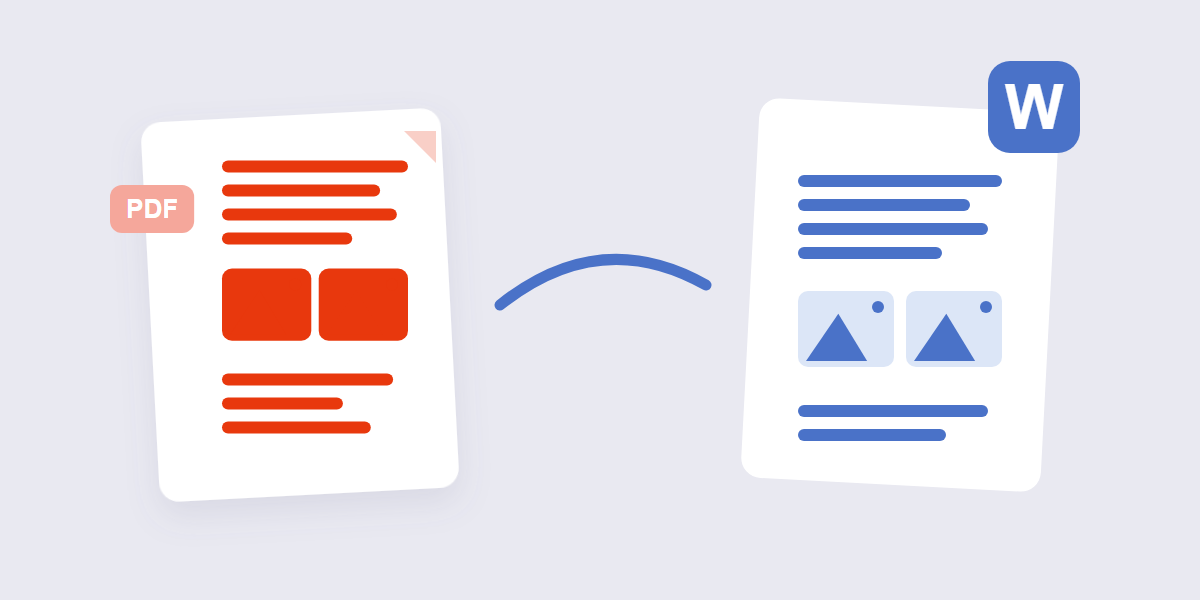
The formatting damage you see after converting a PDF to Word almost always comes down to one thing: the PDF never stored a document structure to begin with. It stored a visual snapshot — text positioned at exact coordinates, images placed on top, fonts referenced by name. Word, by contrast, needs paragraphs, styles, and flowing text to work with. Converting between the two means reconstructing structure that was never really there, which is why some PDFs convert almost perfectly and others come out as a mess of stray text boxes. Here’s how to get the best possible result, and how to fix it when the conversion doesn’t cooperate.
Why PDF to Word Conversion Breaks Formatting
A PDF is built to look the same everywhere, on any screen or printer. To do that, it records where each character, image, and line sits on the page using fixed coordinates. It doesn’t store the logical structure Word relies on, such as “this is a heading,” “this is a bulleted list,” or “this paragraph continues from the previous page.”
When a converter turns a PDF into a Word document, it has to guess that structure back into existence. That guesswork is where formatting problems come from:
- Tables aren’t real tables. Many PDFs “fake” a table using precisely positioned text and thin lines rather than an actual table object, so the converter has to infer rows and columns from visual alignment.
- Fonts may not be embedded. If a PDF references a font without embedding it, Word substitutes a similar font on your system, which can shift line breaks and page length.
- Multi-column layouts confuse reading order. A converter reading left to right, top to bottom can jumble two-column text if it doesn’t correctly detect the column boundaries.
- Scanned pages have no real text at all. A scanned PDF is just a picture of a page. Converting it requires OCR (optical character recognition) to guess the characters from the image, which introduces its own error rate.
Why Getting This Right Matters
Formatting loss isn’t just cosmetic. A contract with shifted clauses, a resume with a broken layout, or a report with misaligned tables can misrepresent the original document or simply look unprofessional. If you’re editing something you’ll send back out — a client deliverable, a form, a shared reference document — a clean conversion saves you from rebuilding pages of layout by hand.
Identify Your PDF Type Before You Convert
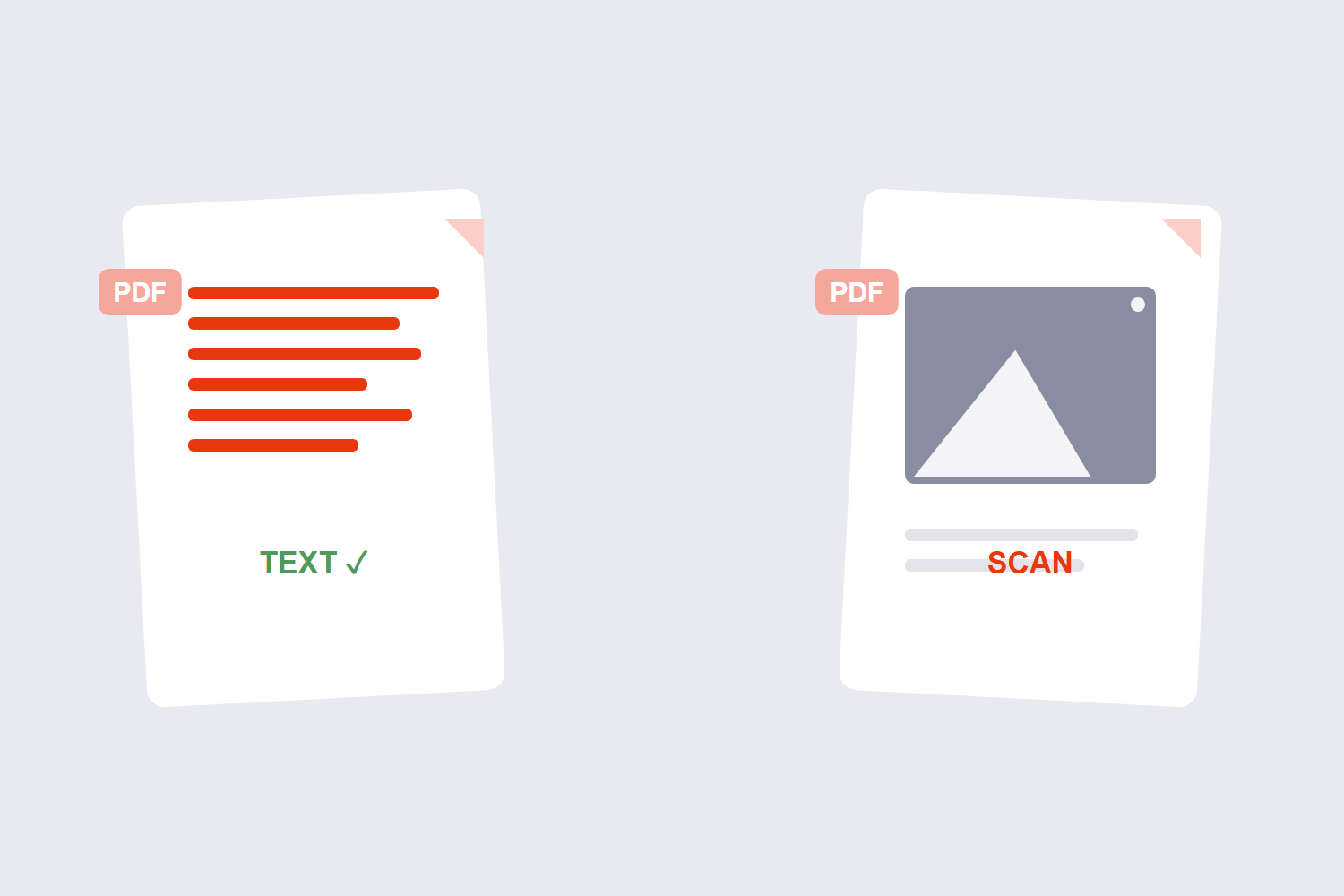
The single biggest factor in conversion quality is what kind of PDF you’re starting with. Before running any conversion, check which type you have:
- Native text PDF. Open the file and try to click-and-drag to highlight a word. If you can select individual characters, the text is real and embedded, not a picture. These convert the most reliably.
- Scanned or image-based PDF. If you can’t select any text, the “text” is actually part of a flattened image. This requires OCR, and results depend heavily on scan quality, so expect more manual cleanup afterward.
- Complex layout PDF. Multi-column academic papers, forms, and PDFs with heavy use of tables or sidebars fall into a middle category — the text is usually real, but the reading order and visual structure are harder for any converter to reconstruct cleanly.
Knowing which category your file falls into sets realistic expectations. A simple, single-column business letter with embedded fonts will convert close to perfectly. A scanned, multi-column academic paper will need real editing afterward no matter which tool does the conversion.
How to Convert PDF to Word Step by Step
Step 1: Check your PDF type
Try selecting text in the PDF as described above. This tells you whether to expect a clean conversion or plan for post-conversion cleanup.
Step 2: Repair the file first if it’s damaged
If your PDF was corrupted during a download, has broken cross-reference tables, or won’t open properly in some viewers, conversion quality suffers. Running it through Repair PDF first can fix structural issues before you convert.
Step 3: Convert the file
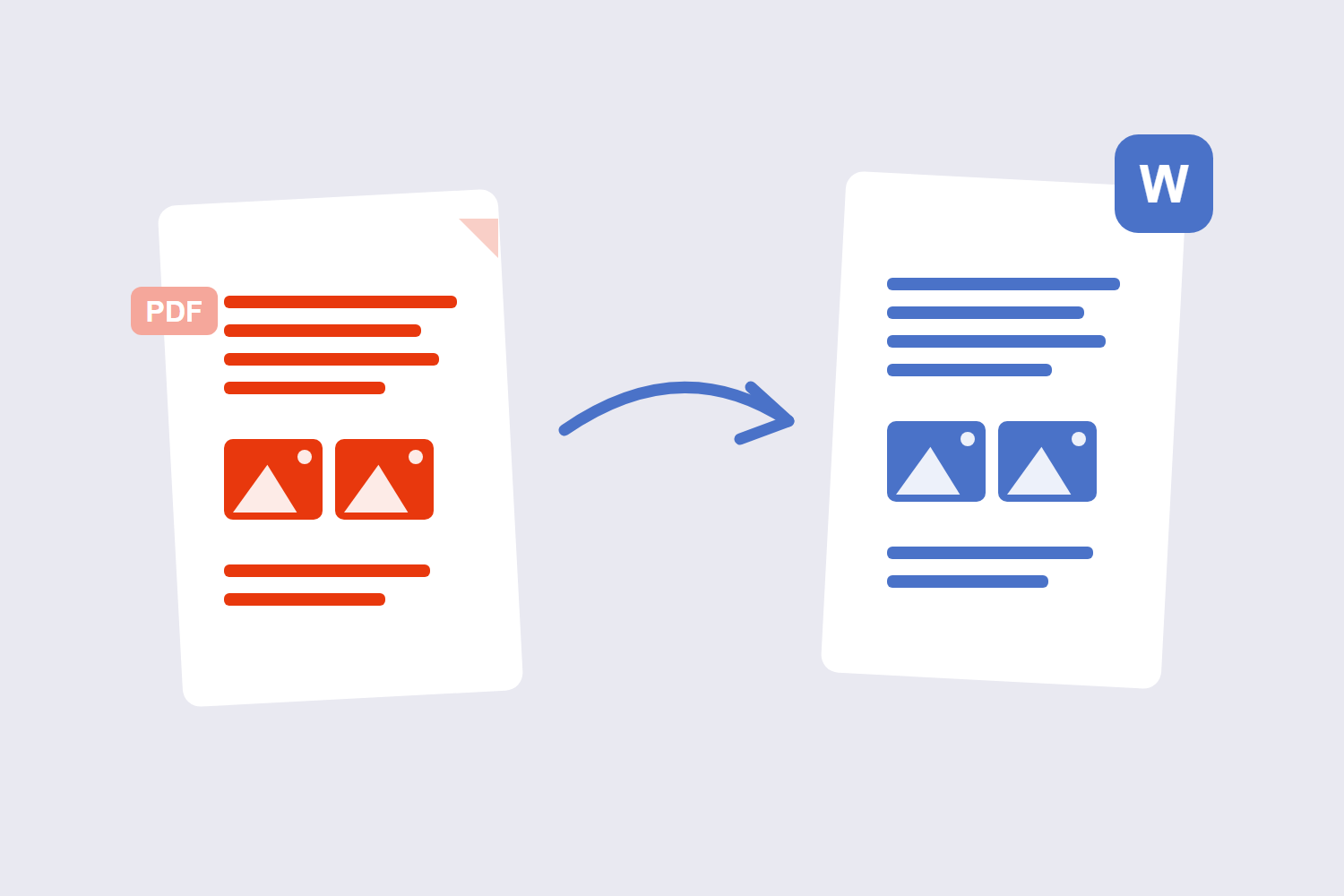
Open PDF to Word, upload your file, and start the conversion. The tool reads the PDF’s text and layout and rebuilds it as an editable .docx file. The usual cause of a shifted Word-to-PDF conversion is fonts the converter cannot find. Word documents reference fonts by name; if the converting machine does not have that font, it substitutes the closest match and every line break can move.
Step 4: Open the result in Word and check the structure first
Before fixing anything visually, check whether headings are actually marked as headings (Word’s Styles pane will show this), whether tables are real table objects you can resize, and whether paragraphs flow as single blocks rather than being broken into separate text boxes. Structural problems are worth fixing before cosmetic ones, since fixing the structure often resolves several visual issues at once.
Step 5: Fix cosmetic issues in order
Work through fonts first, then spacing and margins, then tables, then images — in that order. Later fixes often depend on earlier ones being correct, so jumping straight to image placement before fonts are settled tends to mean redoing work.
Tips for Better Results
- Start with the best available source. If you have a choice between a PDF exported directly from Word, PowerPoint, or Google Docs versus one that was printed and rescanned, always use the direct export. It preserves real text and embedded fonts.
- Simplify before converting, if you can. If you have access to the original document, removing unnecessary text boxes, unusual fonts, or overly complex table nesting before exporting to PDF reduces what the converter has to reconstruct.
- Reapply Word styles rather than manually formatting. Once you’re in Word, use the built-in Heading 1, Heading 2, and body text styles instead of manually bolding and resizing text. This fixes inconsistent formatting in one pass and keeps the document editable going forward.
- Handle large files in sections if needed. A 100+ page PDF has more opportunities for small errors to accumulate. If a large document converts poorly, converting individual sections separately can sometimes produce cleaner results than one massive pass.
- Treat tables and images as their own pass. Once text and headings look right, go through tables one at a time to confirm columns aligned correctly, then check that images landed in the right place and are anchored the way you want.
Common Mistakes to Avoid
- Expecting a perfect, one-click result on every PDF. Conversion is a best-effort interpretation of a fixed layout, not a guaranteed reconstruction. Simple documents convert cleanly; complex ones need review.
- Skipping OCR on a scanned PDF. If you convert a scanned document without OCR, you’ll get an image of text inside a Word file rather than editable text you can actually select and change.
- Manually reformatting before fixing structure. Adjusting fonts and spacing before checking whether headings and tables converted as proper Word objects means redoing that work once the underlying structure is fixed.
- Converting a low-quality scan and expecting clean text. OCR accuracy depends on scan resolution and clarity. A blurry or skewed scan will produce more recognition errors, regardless of which tool processes it.
- Ignoring non-embedded fonts. If the original PDF uses a font your system doesn’t have, Word substitutes something else, which can quietly shift line breaks and page count without any obvious error message.
Fixing the Most Common Problems After Conversion
Once you’re in Word, most formatting issues fall into a handful of recurring categories. Working through them in this order tends to be the fastest path to a clean document:
- Headings not styled correctly. If a heading looks right visually but wasn’t converted as an actual Heading style, select it and apply the correct style from Word’s Styles pane. This also fixes navigation and any table of contents you build later.
- Leftover page breaks and section breaks. PDFs convert page boundaries literally, which can leave odd breaks in the middle of what should be continuous text. Use Find and Replace with special characters (^m for page breaks, ^b for section breaks) to locate and remove ones that don’t belong.
- Bullet points that lost their list formatting. If bullets converted as plain text with a dash or symbol instead of an actual Word list, select the lines and reapply bullet or numbered list formatting so the document stays easy to edit.
- Images anchored incorrectly. If an image shifts around as you edit text, right-click it, choose Wrap Text, and set it to “In Line with Text” for predictable placement, or “Behind Text” if it’s meant as a background element.
- Tables with merged or misaligned cells. Click into the table and use Word’s Table Design and Layout tabs to merge, split, or resize cells rather than manually dragging borders, which tends to compound alignment problems.
Fixing these in order — structure first, then breaks, then lists, then images, then tables — avoids the common trap of polishing a section visually only to redo the work after a structural fix shifts everything below it.
Comparing PDF Types and What to Expect
| PDF Type | How to Identify It | Typical Conversion Quality | What Helps Most |
|---|---|---|---|
| Native text, single column | Text is selectable; simple layout | Very good, close to original | Minimal cleanup usually needed |
| Native text, multi-column or tables | Text is selectable; complex layout | Good, but reading order and table alignment need checking | Manual review of tables and column order |
| Scanned or image-based | Text cannot be selected or highlighted | Variable, depends on scan quality | OCR plus manual proofreading |
| Corrupted or malformed file | Won’t open properly, or opens with errors | Poor until repaired | Repair the file before converting |
When to Extract Just the Text Instead
If you don’t actually need formatting preserved — you just want the words to reuse, quote, or search — converting to Word may be more work than necessary. In that case, a straight text extraction with PDF to Text skips the layout reconstruction entirely and gives you plain text to work with, which is often faster and cleaner for that specific need.
And if you’re working the other direction — you have a Word document and need a PDF for sharing — Word to PDF avoids the formatting question altogether, since a PDF exported directly from Word preserves the original layout exactly as designed.
Frequently Asked Questions
Why does my converted Word document have random text boxes instead of normal paragraphs?
This usually happens when the PDF stored text as precisely positioned, individual blocks rather than flowing paragraphs, which is common in PDFs exported from design software or forms. The converter reproduces each block as a separate text box because that’s how the original was structured.
Can I convert a scanned PDF to Word and get editable text?
Yes, but it requires OCR, which analyzes the scanned image and matches shapes to characters. Accuracy depends on scan resolution, image clarity, and font style in the original document. Clean, high-resolution scans of standard fonts produce far better results than blurry or skewed scans. DOCX stores content as XML inside a ZIP container, which is why the same document can be read by Word, LibreOffice and Google Docs. PDF stores fixed-position drawing instructions, which is why it looks identical everywhere but is far harder to edit back.
Why did my fonts change after converting?
If the original PDF didn’t embed its fonts, Word substitutes a similar font available on your system once you open the converted file. This can shift line breaks, paragraph spacing, and even how many pages the document takes up.
Is it possible to get a 100% perfect conversion every time?
No. Conversion is a best-effort reconstruction of a fixed-layout format into a flowing, editable one, not a guaranteed exact match. Simple, single-column text documents come very close. Complex layouts with tables, columns, and scanned content typically need some manual review afterward.
Should I fix formatting issues in the PDF first or after converting to Word?
If you have access to the original source file (the Word, PowerPoint, or design file the PDF was exported from), it’s usually faster to simplify formatting there and re-export to PDF. If you only have the PDF itself, it’s more practical to convert first and then fix the Word document directly.
Why do my tables look broken after conversion?
Many PDFs don’t contain real table objects — what looks like a table is actually text positioned in rows and columns using thin lines for visual separation. The converter has to infer the table structure from that visual layout, and complex or inconsistent spacing can cause it to misread rows or columns.
What’s the difference between converting to Word and just extracting the text?
Converting to Word attempts to preserve the visual layout — paragraphs, headings, tables, and image placement — as an editable document. Extracting text only pulls the words themselves, without any layout, which is faster and cleaner when you don’t need to preserve formatting at all.
Final Thoughts
Formatting loss during PDF to Word conversion isn’t a sign that a tool did something wrong. It’s the natural result of translating a fixed-layout format into a flowing, editable one, and how much cleanup you need depends mostly on how the original PDF was built. Identify your PDF type first, convert with realistic expectations, and fix structural issues before cosmetic ones. Start with PDF to Word for the conversion itself, and keep Repair PDF in mind if a damaged file is giving you trouble before you even get that far.
