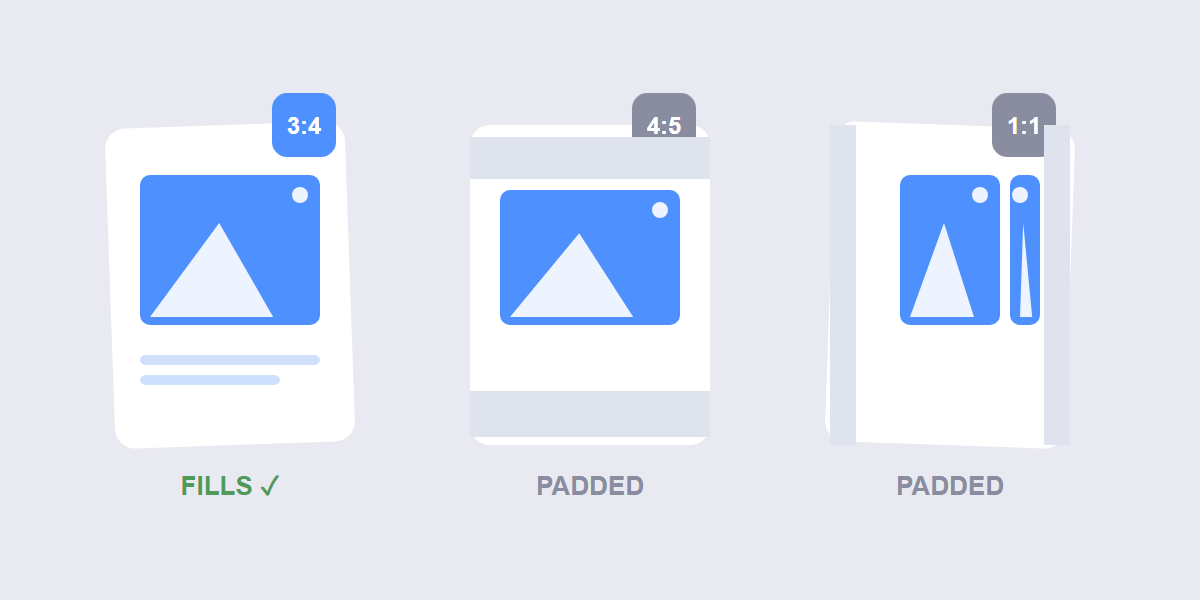
Quick answer: set your canvas to 3:4 (1080Ã1440 px) before you crop anything for Instagram. That ratio fills a profile-grid tile edge to edge in 2026, so nothing gets clipped. If you post at 4:5 (1080Ã1350) or square (1080Ã1080), Instagram centers your photo in the grid tile and trims or pads the rest.
Instagram changed its profile grid from square to 3:4 portrait in January 2026, and a lot of beautifully designed posts suddenly look cropped on profiles. The fix isn’t to stop posting â it’s to crop with the grid in mind. Here’s the exact math, the safe-zone rule, and a 60-second workflow using free browser tools.
The grid math, in plain numbers
Since the January 2026 change, Instagram previews every post on your profile as a 3:4 portrait tile â 1080Ã1440 pixels. Your actual post can be a different ratio, but the grid always shows that 3:4 window. Three numbers cover everything you’ll ever crop for:
| Placement | Size | Ratio | Grid behavior |
|---|---|---|---|
| Grid tile (target) | 1080Ã1440 | 3:4 | Fills perfectly, no crop |
| Feed post (portrait) | 1080Ã1350 | 4:5 | Letterboxed slightly in grid |
| Feed post (square) | 1080Ã1080 | 1:1 | Side padding in grid |
Notice the trap: a 4:5 feed post (1080Ã1350) is taller than it is wide, but the grid tile is taller still. Instagram fits the whole post inside the tile and pads the gap â which is why 4:5 posts look like they have bars on your profile. Only 3:4 fills it.
The safe-zone rule
When you crop an existing photo to 3:4, you’re usually cutting from a wider original (4:3 or 16:9 camera output). That means trimming the sides â and whatever sits at the far left or right edge goes with it. The rule that saves you:
Keep faces, text and product edges inside the central 80% of the frame. Crop confidently at the edges, but never let anything meaningful cross into the outer 10% on either side. Same logic vertically if you’re cropping a tall screenshot down to 3:4: the outer 10% top and bottom are expendable, the middle is sacred.
If your design has text baked in, place the text block dead center and leave breathing room. Grid crops punish edge-hugging typography more than anything else.
The 60-second crop workflow
You don’t need a design app for this. Free browser tools do it in four steps, and your photos never leave your device:
- Crop to 3:4. Open the free Crop Image tool, drop your photo, and select or enter the 3:4 aspect ratio. Drag the crop window so your subject sits centered â remember the 80% rule.
- Resize to exactly 1080Ã1440. Pass the crop to the Resize Image tool and set 1080Ã1440. Exporting at the exact pixel size stops Instagram’s compressor from doing more damage than necessary.
- Compress lightly if it’s over 8 MB. Instagram caps image uploads at 8 MB. A quick pass through Compress JPG at 85â90% quality gets you under it with no visible loss.
- Post and check your grid. View your profile â the tile should fill edge to edge, no bars, no clipping.
One master photo, three tools, about a minute. If you post in batches, crop the whole set in one session â the tools handle batch files.
What happens to old ratio posts
Nothing breaks. Square and 4:5 posts still display fully in the feed â the grid is the only place the 3:4 window applies. But your profile is your storefront, and mismatched tiles make it look untidy even when each post is fine.
My honest take: don’t mass-repost old content to fix the grid. Instead, apply the 3:4 rule going forward, and if a few high-value posts (your pinned ones, best performers) matter a lot, re-crop just those. Pinning three 3:4 posts to the top of your grid does more for how your profile reads than perfectly reshaping years of history.
Three mistakes that ruin grids
- Cropping in the Instagram app at upload time. The in-app crop shows you the feed preview, not the grid preview. You’re aiming at the wrong target â crop to 3:4 before you upload instead.
- Trusting the feed preview as final. The feed shows 4:5 beautifully; the grid trims or pads it. Always check the profile grid after posting, not just the feed.
- Upscaling small crops. Cropping a 1000px-wide photo to 3:4 leaves you short of 1080. Upscaling adds blur â re-crop from the original instead, or accept a slightly softer tile.
For the full picture of every platform’s 2026 sizes â Reels safe zones, Facebook, YouTube thumbnails â the social media image sizes guide has the complete table. And if your photos are over the upload cap, the compression guide shows exactly which quality level to pick.
FAQ
What size is the Instagram grid tile in 2026?
1080Ã1440 pixels at a 3:4 ratio. Instagram switched the profile grid from square 1:1 tiles to 3:4 portrait in January 2026, and that’s the size that fills a tile completely with no cropping or padding.
Should I post 3:4 or 4:5 on Instagram?
Both work in the feed. Post 4:5 (1080Ã1350) if your photo suits a slightly wider frame and you don’t mind grid padding â or go 3:4 (1080Ã1440) if a clean profile grid matters more. Designers who care about the grid profile now standardize on 3:4.
How do I crop a photo to 3:4 without an app?
Use a browser-based tool like the free Crop Image tool: drop the photo, set the 3:4 ratio, position the crop, and download. Then resize to 1080Ã1440. It works on phone and desktop and your file stays on your device.
Why does my 4:5 post look cropped on my profile?
It isn’t cropped â it’s letterboxed. The 3:4 grid tile is taller than a 4:5 post, so Instagram pads the gap. Only a true 3:4 image fills the tile exactly.
Do Reels covers follow the same 3:4 rule?
Reels covers display at 9:16 in feed and get a 3:4 crop in the grid. Keep the title and subject centered â the same central 80% rule applies â and the grid crop will look intentional.
Does Instagram compress cropped images?
Yes, all uploads get re-compressed on Instagram’s servers. You minimize the damage by uploading at exactly 1080Ã1440 as a JPG at 85â90% quality â a clean input gives the platform’s compressor less to mangle.
