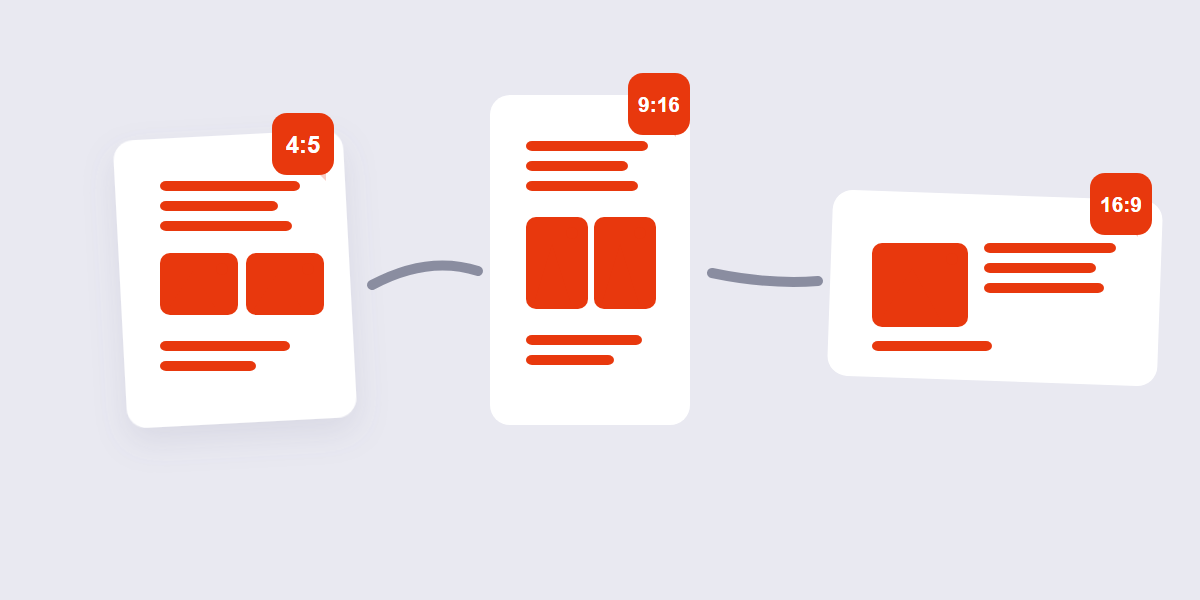
Every platform published new specs this year, and Instagram moved the goalposts again — but the honest truth is you need six sizes, not the fifty most guides throw at you. Instagram feed is 1080×1350, Stories and Reels are 1080×1920, Facebook feed matches Instagram at 1080×1350, X posts work best at 1600×900, LinkedIn posts at 1200×627, and YouTube thumbnails at 1280×720. Get those six right and your images land sharp on every network that matters in 2026.
The big change: Instagram’s profile grid is 3:4 portrait now, not square, and that breaks a lot of older templates. Below I’ll show you exactly what changed, the social media image sizes that actually matter with their safe zones, why your posts keep getting cropped, and the free resize workflow I’d use before every post.
Table of contents
- What actually changed in 2026
- The social media image sizes you actually need (2026 table)
- Why your posts get cropped — and the fix
- How to resize images for social media (free, ~1 minute)
- Upload settings that stop platforms from butchering quality
- FAQ
What actually changed in 2026
Three changes are worth your attention, and one of them affects every post you’ve already published:
1. Instagram’s grid went portrait. In January 2026 Instagram switched profile grids from the old 1:1 square tiles to a taller 3:4 grid, and the app now accepts 3:4 uploads natively ([Sprout Social’s 2026 guide](https://sproutsocial.com/insights/social-media-image-sizes-guide/) tracks the change). Square posts don’t vanish — they just sit in the grid with blank bars or tight cropping around them, which makes every profile look slightly off. If your cover graphics were designed for squares, they were designed for a layout that no longer exists.
2. Meta settled on 4:5 for the feed. Portrait 1080×1350 (4:5) is now the officially preferred feed ratio on both Instagram and Facebook, ahead of the legacy square ([Digital Applied’s 2026 spec sheet](https://www.digitalapplied.com/blog/social-media-image-sizes-2026-every-platform) confirms it as the default recommendation). Vertical simply takes more screen space, and the platforms reward it.
3. X stopped auto-cropping vertical images. Through 2025 X famously chopped portrait photos into ugly previews; that auto-crop is gone in 2026, so 1080×1350 portrait posts now display as posted. Small change, big quality-of-life difference if you cross-post from Instagram.
Honest aside: Hootsuite and Sprout disagree on small details (like the exact pixel width of the grid preview), which tells you Instagram keeps tweaking internals. Design to the ratios in this guide and you’ll survive whatever they change next — ratios are stable, exact preview pixels are not.
The social media image sizes you actually need (2026 table)
Here’s the whole cheat sheet. Six platforms, twelve rows, nothing you’ll never use:
| Platform | Placement | Size (px) | Ratio | Note |
|---|---|---|---|---|
| Feed post / carousel | 1080×1350 | 4:5 | Default for photos | |
| Profile grid | 3:4 crop of your post | 3:4 | 1080×1350 or 1080×1440 fills it | |
| Stories & Reels | 1080×1920 | 9:16 | Keep text out of top 250px / bottom 340px | |
| Profile photo | 320×320 upload | 1:1 | Shows as a circle | |
| Feed image | 1080×1350 | 4:5 | Same master as Instagram | |
| Cover photo | 851×315 | ~2.7:1 | Upload at 2× for sharpness | |
| Event cover | 1920×1005 | ~1.91:1 | — | |
| X (Twitter) | In-feed image | 1600×900 | 16:9 | Portrait 1080×1350 now safe too |
| Header / profile | 1500×500 / 400×400 | 3:1 / 1:1 | 5 MB limit | |
| Feed image | 1200×627 | 1.91:1 | 1200×1200 square also works | |
| Profile banner | 1584×396 | 4:1 | Crops tighter on mobile | |
| TikTok / YouTube | TikTok video & photo mode | 1080×1920 | 9:16 | Same export as Reels |
| YouTube thumbnail | 1280×720 | 16:9 | Under 2 MB, JPG/PNG | |
| YouTube channel art | 2560×1440 | 16:9 | Keep logos in 1546×423 safe area |
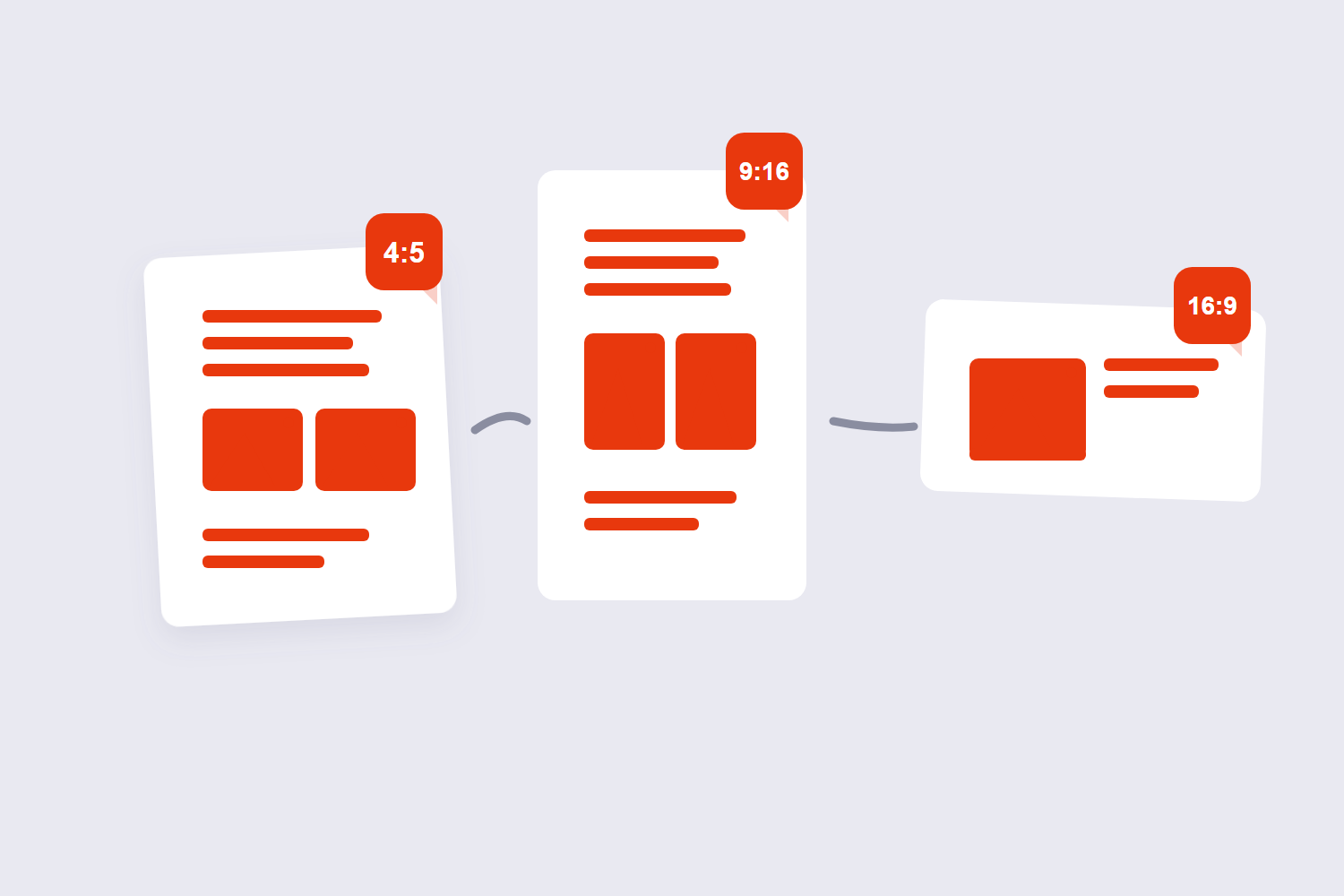
Notice the pattern: three master ratios cover 90% of it — 4:5 for feeds, 9:16 for vertical video surfaces, 16:9 for landscape. Produce one good master image, export it at those three ratios, and you’re done. That’s the whole workflow in the next section.
Why your posts get cropped — and the fix
The feed and the profile grid show different slices of the same post, and that’s what surprises people. You upload 1080×1350; followers see all of it in the feed, but on your profile grid Instagram crops top and bottom to fit the 3:4 tile. Anything sitting in those outer bands — a headline, a face, a logo — disappears on the grid but looks perfect in the feed.
The fix is boring and effective: keep the important stuff centered. Design at 1080×1350, and treat roughly the outer 10% top and bottom as decoration only. For Reels and Stories (1080×1920), the platforms publish explicit safe zones — Sprout Social’s current numbers are 250px off the top and 340px off the bottom, where the username, caption and buttons sit on top of your design. All readable text and faces go in the middle band.
How to resize images for social media (free, ~1 minute)
You don’t need Canva Pro or a design agency for this — resizing is a two-tool job, and both run free in your browser without uploading your photos anywhere:
- Start from the biggest master you have. The original photo straight off your phone or camera. Exporting down never loses quality; upscaling does.
- Crop to the ratio first. Open the free Crop Image tool, pick 4:5 (feed), 9:16 (Reels/Stories) or 16:9 (YouTube/X), and position the crop so faces and headlines sit in the middle. Cropping beats squeezing — a squeezed image distorts, a cropped image just loses edges.
- Resize to the exact pixels. Drop the crop into the Resize Image tool and type the target — 1080×1350 or 1280×720, whatever the table above says. Resizing after cropping means the aspect ratio stays locked and nothing stretches.
- Export and post. JPG at high quality for photos, PNG for graphics with text or logos. More on that below.
One master, three crops, four minutes total for a full cross-platform post. If you do this weekly, make a folder per ratio — feed/, reels/, thumb/ — and stop re-deriving sizes from memory. Nobody’s brain should hold twelve pixel dimensions.
Upload settings that stop platforms from butchering quality
Here’s the part size guides skip: Instagram and Facebook re-compress every upload on their servers. Your crisp 1080×1350 gets re-encoded again after upload, and if you hand them a huge, poorly compressed file, the platform’s compressor has more room to make it look mushy. You can’t stop the re-compression, but you can hand it a clean input:
- Export photos as JPG at 85–90% quality. That’s the sweet spot — high enough to survive re-encoding, small enough to upload fast. (If you want proof of how much quality level changes file size, we measured the same photo at different quality levels in our guide to compressing images without losing quality.)
- PNG only for text-heavy graphics and logos. JPG turns crisp text edges fuzzy; PNG keeps them sharp. Our JPG vs PNG vs WebP comparison shows exactly when each format wins.
- Stay under the platform caps. Instagram allows up to 8 MB per image — you’ll hit it only with huge photos, but a quick pass through the Compress JPG tool fixes it in seconds.
- WebP is for websites, not social uploads. It saves serious bandwidth on a site you control, but social platforms still want JPG or PNG — the full rundown is in our image to WebP guide.
And one habit worth stealing from video editors: export at exactly the target pixels, nothing larger. Uploading a 6000px photo for a 1080px slot doesn’t add quality — it just gives the platform’s compressor a bigger file to mangle.
FAQ
What size is an Instagram post in 2026?
1080×1350 pixels (4:5 portrait) is the default for feed photos and carousels. Square 1080×1080 still works, and the grid now displays a 3:4 crop — so keep faces and text centered either way. Stories and Reels are separate: 1080×1920.
Is Instagram still square?
No. The profile grid switched from square 1:1 tiles to 3:4 portrait tiles in January 2026, and Instagram now accepts 3:4 uploads natively. Old square posts remain on your profile but no longer match the grid layout.
What ratio are Reels and Stories?
Both are 9:16 at 1080×1920 pixels. Leave the top 250px and bottom 340px free of text and logos — that’s where the interface (username, caption, buttons) covers your design. One 1080×1920 export also works for TikTok and YouTube Shorts.
What’s the best image size for Facebook?
Use the same 1080×1350 (4:5) you use on Instagram — Meta prefers it for feed images on both apps. Cover photos are the exception at 851×315 pixels, and event covers at 1920×1005.
Why does my image look blurry after uploading?
Almost always platform re-compression, not your export. Upload at the exact target size as a JPG at 85–90% quality (or PNG for graphics) and the re-encode has far less damage to do. Images above the target size or below ~70% quality suffer most.
Do image sizes affect reach?
Not directly — there’s no official “wrong ratio kills reach” rule. Indirectly, yes: a badly cropped or blurry image gets scrolled past, and platforms watch how people interact. Sharp, full-ratio images simply get more engagement, which is what distribution follows.
