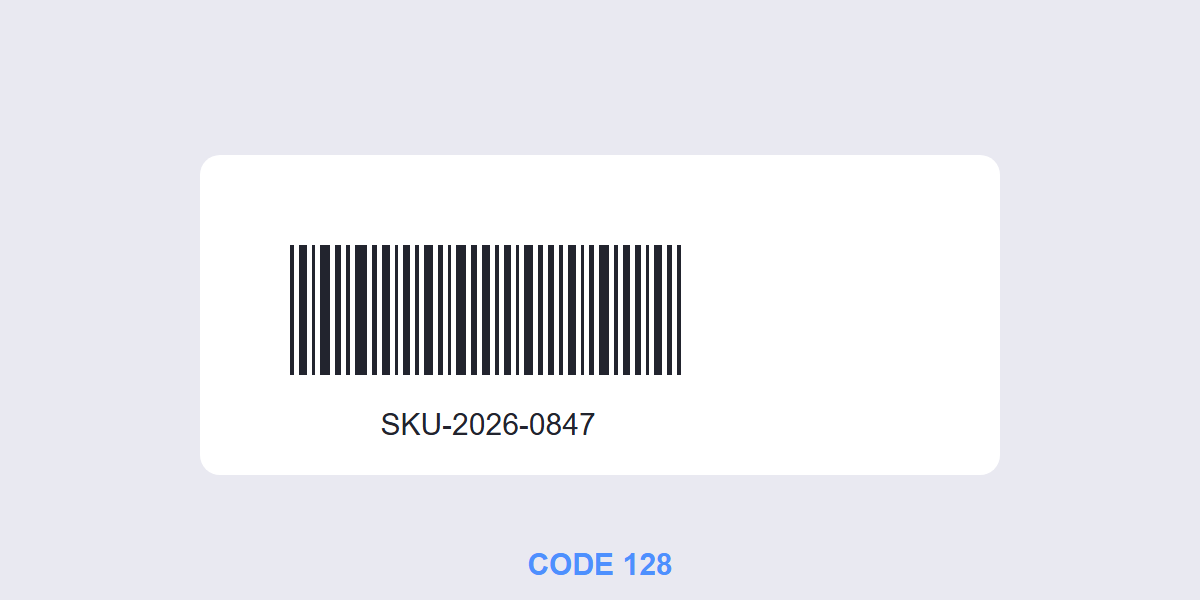
Quick answer: open a free Barcode Generator, pick the barcode type (Code 128 for inventory and shipping), enter your numbers or code, and download a print-ready image. It takes under a minute and works for asset tags, warehouse labels and product codes.
Barcodes look like 1990s technology, but they’re still the workhorse of inventory, shipping and retail â cheap to print, fast for laser scanners, and readable on anything. This guide covers which barcode type fits your job, how to generate one free, and the printing rules that make the difference between a code that scans every time and one that fails at the worst moment.
Which barcode type you need
“Barcode” is a family of formats, and using the wrong one means scanners ignore it:
| Type | Encodes | Typical use |
|---|---|---|
| Code 128 | Letters and digits, compact | Inventory, asset tags, shipping labels |
| EAN-13 / UPC-A | Fixed-length product numbers | Retail products with GS1-issued numbers |
| Code 39 | Letters and digits, larger | Legacy industrial and government systems |
| QR code | URLs and long text, 2D | Smartphone scanning, marketing, manuals |
The rule of thumb: internal tracking â Code 128 (compact, laser-scanner friendly), retail products â EAN/UPC (requires GS1-issued numbers â never invent these), smartphone content â QR. GS1’s “Sunrise 2027” initiative is pushing 2D codes into retail checkout globally, but linear barcodes remain the standard for warehouse and logistics labels.
How to generate a barcode free
- Open the generator. Go to the free Barcode Generator and pick your barcode type from the list â Code 128 for most internal uses.
- Enter your code. Type the exact value (a SKU, asset number or serial). What you type is exactly what the barcode encodes â a typo means a barcode that scans as the wrong code.
- Set the size and download. Generate the image and download it â print-ready, no watermark, and it runs entirely in your browser.
For labeling a whole series â 50 asset tags, a batch of product codes â generate them in sequence and lay them into your label template, or batch the values if your workflow supports it. A QR code holds up to 2,953 bytes, 4,296 alphanumeric characters or 7,089 digits in its largest version (version 40). Practically, a URL of 50–80 characters encodes in a version 3 or 4 symbol, which is what keeps the pattern coarse and easy to scan.
Printing rules that make codes scan
A barcode that doesn’t scan is worse than no barcode. Three printing rules prevent that:
- Contrast: dark bars on a light background. The scanner reads the difference. Inverted codes (white bars on black) fail on most laser scanners, and printing colored bars on colored paper is the classic failure.
- Quiet zones: blank space on both sides. The empty margin before and after the bars is part of the standard â typically at least 10Ã the narrowest bar width. Labels that cram text or borders against the bars scan erratically.
- Size and stretch: never resize non-uniformly. Stretching a barcode wider or taller than its generated proportions breaks the bar-width ratios the scanner decodes. Print at the generated size or scale proportionally.
And always test-scan one printed label with the actual scanner that will use it â phone apps scan differently from warehouse lasers, and paper quality (glossy vs matte) changes reflectivity.
Barcode vs QR code
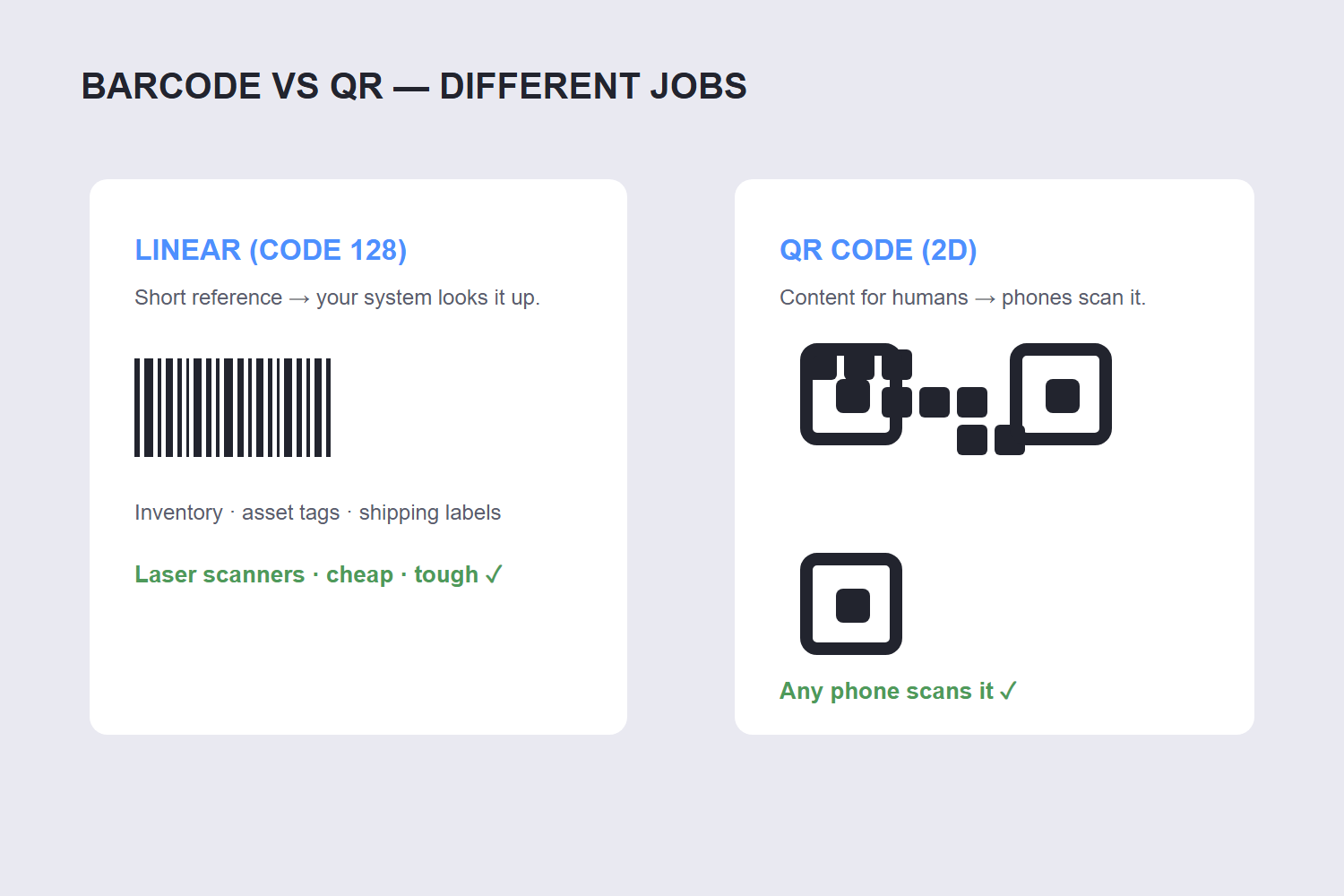
They solve different problems, and the choice is simpler than it looks. Linear barcodes (Code 128, EAN) encode a short reference â a SKU, an asset number â that your system looks up. Scanners are cheap, printing is trivial, and the codes survive rough handling. QR codes encode actual content â a URL, contact card, Wi-Fi credentials â and any smartphone scans them without dedicated hardware.
Use linear barcodes when the code points into your system (inventory, checkouts, asset tracking). Use QR codes when the code points to content for a human (a manual, a menu, a payment link). Many operations use both on the same label: barcode for the system, QR for the human. Our QR Code Generator handles that side if you need both.
FAQ
How do I generate a barcode for free?
Open the free Barcode Generator, choose the type (Code 128 for most uses), enter your value, and download the barcode image. No signup, no watermark, and it works in any browser.
What barcode type should I use for inventory?
Code 128 is the standard for internal inventory and asset tracking â it encodes letters and digits compactly and scans fast with common laser scanners. Use EAN-13 or UPC-A only for retail products with official GS1-issued numbers.
Can I create my own UPC barcode?
No â UPC and EAN numbers come from GS1, the global standards body, and inventing one creates codes that collide with real products. For internal use, Code 128 with your own numbering scheme is free and immediate. QR codes carry four error-correction levels: L recovers about 7% of the symbol, M about 15%, Q about 25% and H about 30%. Higher correction survives a logo in the middle or a smudge, at the cost of a denser pattern — M is the usual default for links.
Why won’t my barcode scan?
The usual culprits: insufficient contrast (light bars or colored paper), missing quiet zones (text touching the bars), non-uniform resizing, or printing too small. Regenerate at a larger size, keep the margins clear, and test with the actual scanner type.
Can a barcode contain a website URL?
Linear barcodes can technically encode short text, but URLs are what QR codes are built for â they hold more data and every smartphone scans them natively. For linking to a website, generate a QR code instead.
Do barcodes expire or stop working?
No â a barcode is just printed data. It works forever as long as the printing stays legible and the system behind it still recognizes the code. That permanence is why they outlast every wireless tagging technology.
