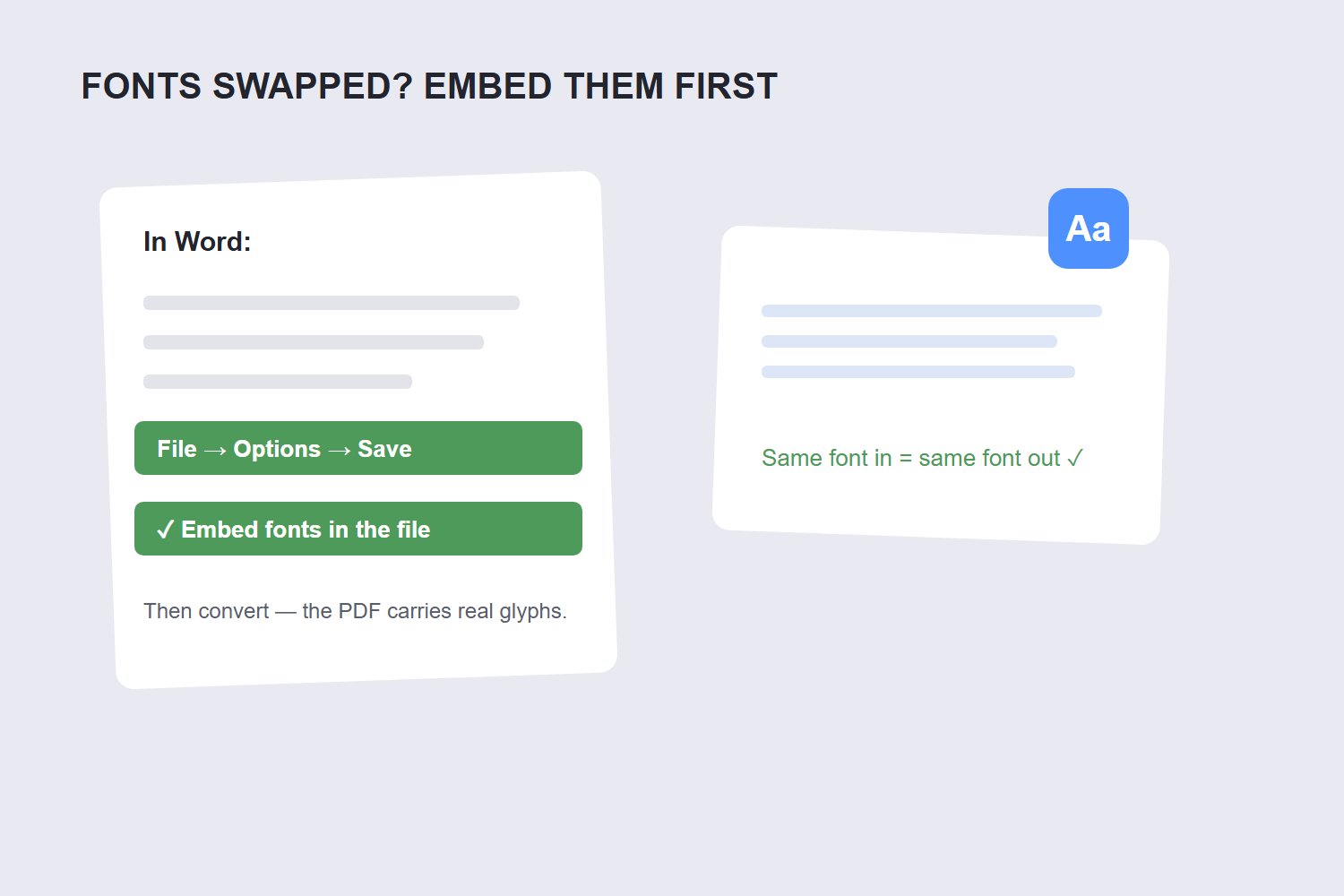
Quick answer: open a free Word to PDF converter in your browser, drop your .docx in, and download the PDF â layout, fonts and tables preserved. If fonts change after converting, the fix is embedding the fonts in Word before export (File â Options â Save â “Embed fonts in the file”).
Word to PDF is the most common document conversion there is, and the most common complaint is formatting that breaks: fonts swap, tables shift, spacing changes. The good news is that the fixes are boring and reliable. Here’s the conversion workflow and the three things that cause 95% of formatting problems.
How to convert Word to PDF step by step
- Open the converter. Go to the free Word to PDF tool and drop your .docx in. It converts in your browser â the document never leaves your device, which matters for contracts and resumes.
- Wait for the conversion. Seconds for most documents; complex layouts with many images take a little longer.
- Download and check page by page. Flip through the PDF against the original â fonts, tables, page breaks. Thirty seconds of checking catches everything.
One note on file types: the converter handles .docx (modern Word). If your file is an ancient .doc from the 90s, save it as .docx in Word first â conversion quality is noticeably better.
Why fonts change (and the embed fix)
Fonts break when the converter substitutes a font it doesn’t have for one your document uses. Two scenarios, two fixes:
- Converting on your own machine: the font exists on your computer, so embed it before converting. In Word: File â Options â Save â check “Embed fonts in the file”. Now the PDF carries the font’s actual shapes, and any converter â local or online â has the real glyphs to work with.
- Using an online converter on any machine: a browser-based converter renders with its own font library. Standard fonts (Arial, Times, Calibri, Georgia) convert perfectly; exotic design fonts may substitute. If your CV uses a designer font, either embed-and-convert locally, or pick from the font’s official fallback.
The same logic explains why tables shift: the converter re-flows text when fonts have different widths. The usual cause of a shifted Word-to-PDF conversion is fonts the converter cannot find. Word documents reference fonts by name; if the converting machine does not have that font, it substitutes the closest match and every line break can move. Fix the font, and the table usually fixes itself.
Keeping tables and layout intact
Tables are the second-most-common casualty, and the cause is almost always in the Word document, not the converter:
- Tab-separated “tables.” If your “table” is actually text aligned with tab characters, no converter can preserve it â it’s not a table. Convert it to a real Word table first, then convert.
- Text boxes floating over text. Converters handle inline content far better than floating objects. Where possible, anchor floating elements to a paragraph instead of the page.
- Manual page breaks in odd places. These survive conversion, but combined with slightly different font metrics they can push a line onto its own page. Remove breaks you don’t strictly need before converting.
The professional habit: fix the document, then convert â never convert, then fight the PDF. PDFs are terrible at being edited; Word documents are built for it.
Three conversion mistakes
- Using print-to-PDF for important documents. The print pipeline rasterizes and re-renders; the native converter path maps Word’s layout directly. Same advice the Microsoft community gives: use Export or Save As PDF, not print.
- Converting a document with tracked changes. The PDF freezes whatever is displayed â redlines and all. Accept or reject changes first.
- Converting without a final page-by-page check. Fonts, images and breaks all survive most conversions â but “most” isn’t “your document.” Thirty seconds of flipping catches the one shifted table before your recipient does.
If the finished PDF is too large to email â resumes with headshots often are â run it through Compress PDF after converting. And for Excel and PowerPoint files, the same converter handles Excel to PDF and PowerPoint to PDF with the same logic.
FAQ
How do I convert Word to PDF for free?
Open the free Word to PDF converter in your browser, drop your .docx in, and download the PDF. No signup, no watermark, and the conversion runs on your device so the document stays private.
Why do my fonts change when I convert Word to PDF?
The converter substituted a font it couldn’t find. Fix it by embedding fonts in Word before converting â File â Options â Save â “Embed fonts in the file” â or by using standard system fonts that every converter has.
Does Word to PDF conversion reduce quality?
No â text in a PDF is vector-based and stays sharp at any zoom. Images are embedded at their original resolution. The PDF should look identical to the Word document if the fonts were available during conversion. DOCX stores content as XML inside a ZIP container, which is why the same document can be read by Word, LibreOffice and Google Docs. PDF stores fixed-position drawing instructions, which is why it looks identical everywhere but is far harder to edit back.
How do I convert Word to PDF on my phone?
Use a browser-based converter: open the Word to PDF tool in your mobile browser, pick the .docx from your storage or cloud drive, and download the PDF. The same layout rules apply â fonts the converter knows convert cleanly.
Can I convert a password-protected Word file?
Remove the protection first â converters can’t process a file they can’t open. Once you have the password, open the document, remove protection from the Review tab, save, then convert.
Is Word to PDF conversion safe for confidential documents?
With a browser-based converter, yes â the file is processed locally and never uploaded. That’s the safest option for resumes, contracts and anything confidential, because there’s no server copy to trust or delete.
