Quick answer: press Ctrl+P (Cmd+P on Mac) in your browser, set the destination to “Save as PDF”, enable Background graphics under More settings, and save. That combination fixes 90% of “my PDF looks broken” complaints â the rest are scaling and lazy-loading issues covered below.
Saving a webpage as PDF sounds trivial until the result arrives: images missing, a table chopped in half, background colors vanished. Browsers can print anything, but webpages were built for screens, not paper â and a few settings bridge the gap. Here’s the reliable method plus the fixes for each common failure.
The reliable save method
- Scroll the whole page first. Lazy-loaded images only download when they enter the screen â if you print without scrolling, half the images save as empty boxes. Scroll top to bottom once, then proceed.
- Press Ctrl+P (Cmd+P on Mac) and set Destination to Save as PDF.
- Open More settings and check Background graphics â without it, backgrounds, colored sections and shading vanish, which is the number-one “my PDF looks broken” cause.
- Set Margins to Default and Scale to Default or Fit to page width.
- Save. The PDF downloads with the page’s layout baked in â ready to archive, email or annotate.
Every browser does this: Chrome, Edge and Firefox all have “Save as PDF” as a print destination, and the settings live under the same “More settings” area.
Fixes for the four common failures
| Failure | Cause | Fix |
|---|---|---|
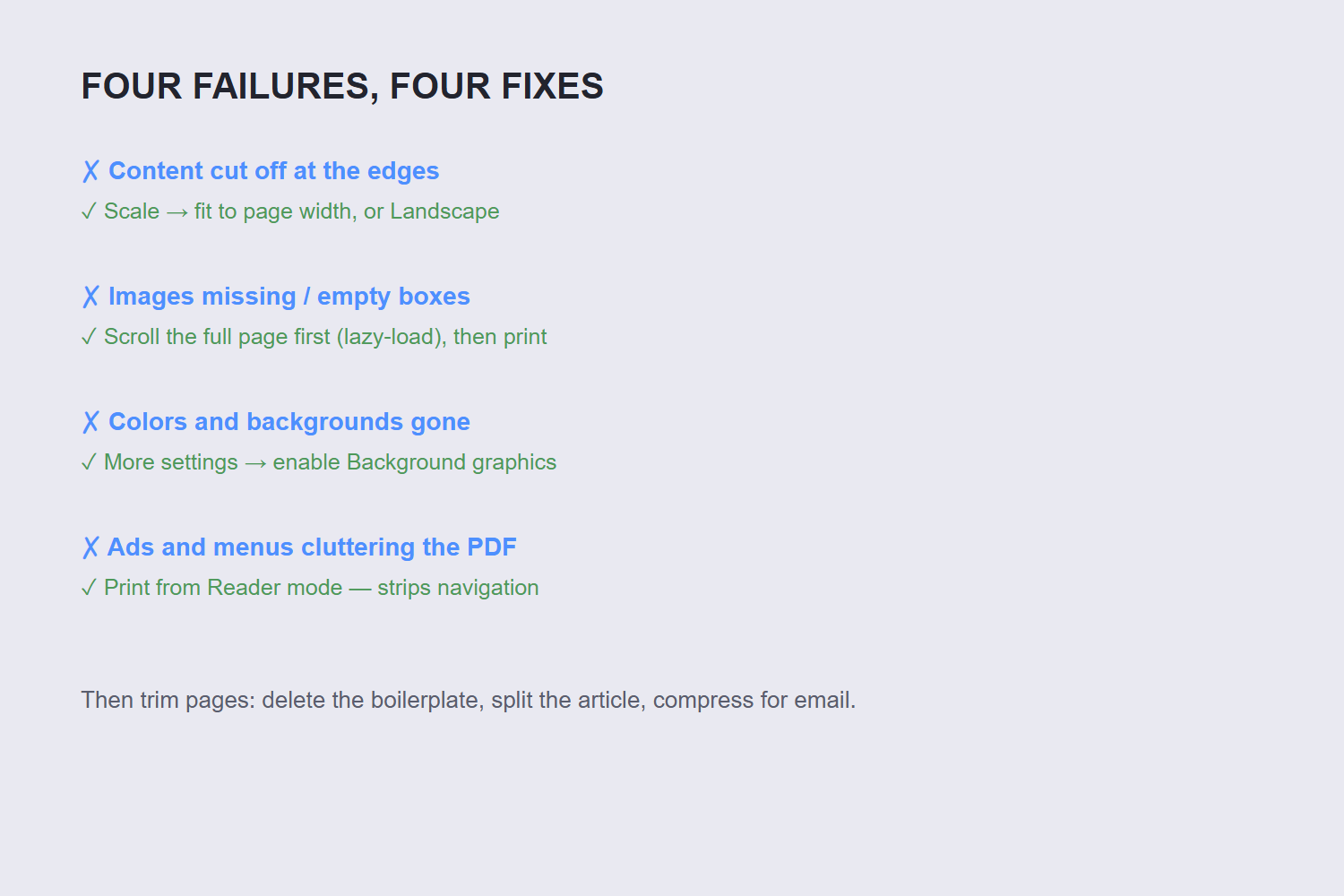
| Content cut off at the edges | Scale mismatch on wide pages | Scale â “Fit to page width”, or Landscape orientation for wide tables |
| Images missing / empty boxes | Lazy-loading skipped during print | Scroll the full page before printing; re-print after images load |
| Colors and backgrounds gone | Background graphics disabled | More settings â check Background graphics |
| Ads and menus in the PDF | The page’s own clutter printed | Use the browser’s Reader mode first, then print â it strips navigation and ads |
Wide tables deserve a special note: they’re the most common casualty of portrait printing. Switch to Landscape and the table survives whole; portrait mode will slice it at the page edge no matter what settings you use. The three web formats differ in what they keep. JPEG discards detail permanently to shrink size, PNG stores every pixel losslessly and supports transparency, and WebP can do either — lossy or lossless — usually landing 25–35% smaller than an equivalent JPEG or PNG.
Saving as PDF on mobile
Android: tap the three-dot menu â Share â Print â choose Save as PDF from the printer dropdown. iPhone: tap Share â Print â pinch out on the preview (this opens it as a PDF) â share or save the PDF. Both produce the same document the desktop does, backgrounds and all â just smaller margins.
Mobile printing also solves the “I need this article offline on the train” case â save it as PDF and it reads identically with no connection.
After saving: trim and convert
The saved PDF often includes pages you don’t need â a comments section, cookie banners that escaped, footer boilerplate. Rather than saving repeatedly until it’s perfect, save once and clean up: the Delete PDF Pages tool removes unwanted pages, and Split PDF extracts just the article if it’s buried in a long thread.
If the saved PDF is too large â image-heavy articles can be â run it through Compress PDF before emailing. And if the whole thing needs rotating because a wide page saved sideways, Rotate PDF fixes it permanently.
FAQ
How do I save a webpage as a PDF?
Press Ctrl+P (Cmd+P on Mac), choose “Save as PDF” as the destination, enable Background graphics under More settings, and save. It works in Chrome, Edge and Firefox with no extensions needed.
Why are images missing from my saved PDF?
Lazy-loaded images only download when scrolled into view â print before scrolling and they’re still empty. Scroll through the entire page first, then print. If images are still missing, the page may load them with JavaScript that blocks printing; a Reader-mode print usually captures the article’s images. DOCX stores content as XML inside a ZIP container, which is why the same document can be read by Word, LibreOffice and Google Docs. PDF stores fixed-position drawing instructions, which is why it looks identical everywhere but is far harder to edit back.
Why does my PDF have no colors or backgrounds?
The print dialog strips backgrounds by default to save ink. Open More settings in the print preview and check “Background graphics” â the page’s colors and shaded sections will appear in the PDF.
How do I save a webpage as PDF on my phone?
Android: menu â Share â Print â Save as PDF. iPhone: Share â Print â pinch outward on the preview to open it as a PDF, then save or share. Both capture the full page including backgrounds.
How do I save only part of a webpage as PDF?
Two ways: set the Pages range in the print dialog (e.g., 2â4), or save the whole thing and delete unwanted pages afterward with a Delete PDF Pages tool â often faster than guessing page numbers in advance.
Why does the text look different in the PDF?
Print stylesheets change how pages render for paper â different fonts, widths and hidden elements are normal. If a page looks drastically wrong, try the browser’s Reader mode before printing, which renders a clean article-only version.
