Password protecting a PDF takes about ten seconds: upload the file, set a password, download the result. The part most guides skip is what that password actually protects, and why the wrong choice can leave a document feeling secure when it isn’t. Here’s how PDF password protection actually works, how to set it up properly, and what to do if you need to remove a password from a file you legitimately own.
- What “Password Protecting a PDF” Actually Means
- Why This Distinction Matters
- How Strong Is PDF Password Encryption?
- How to Password Protect a PDF Step by Step
- How to Remove a Password From Your Own PDF
- When Password Protection Is (and Isn’t) the Right Tool
- Best Practices for PDF Password Protection
- Common Mistakes to Avoid
What “Password Protecting a PDF” Actually Means
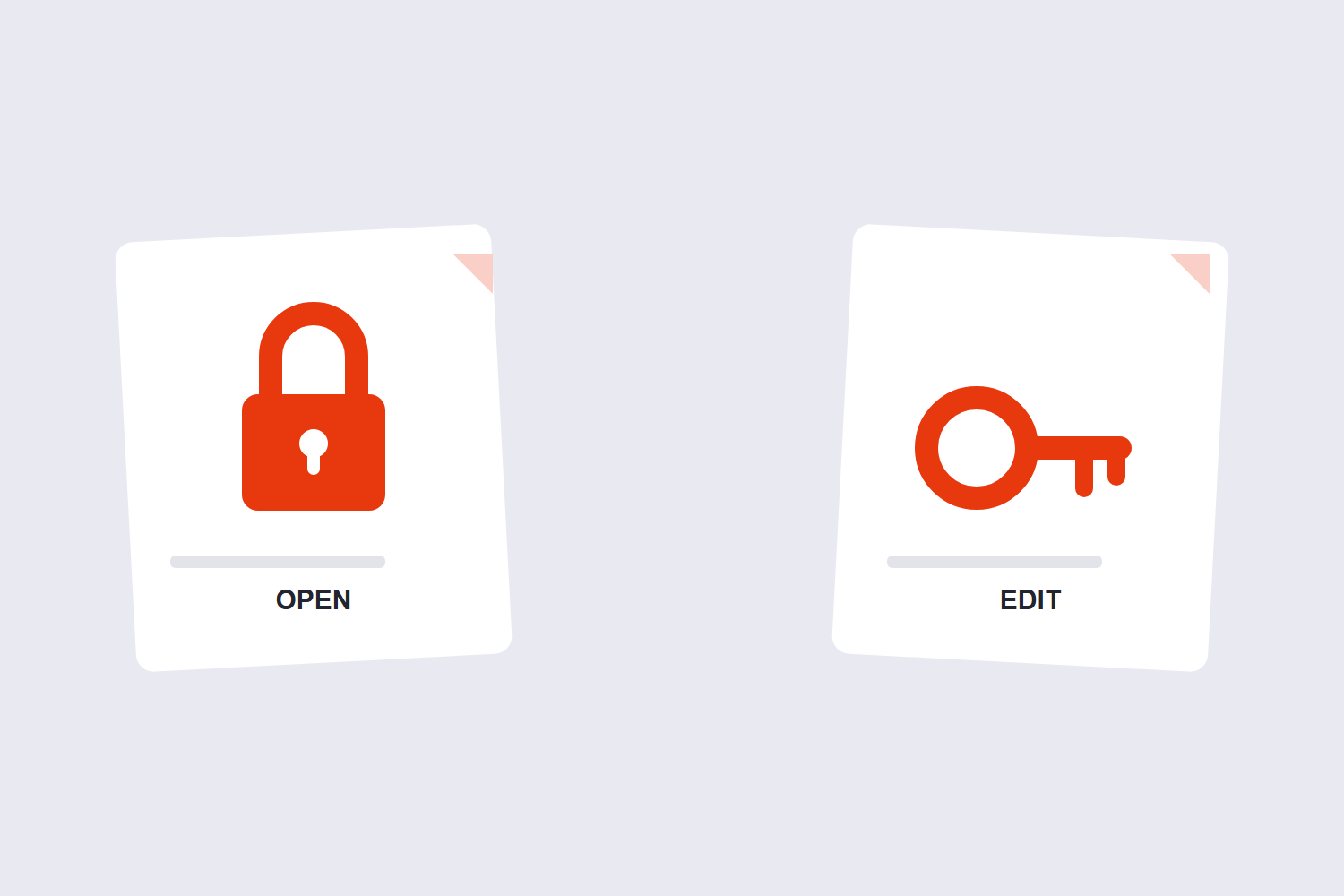
PDF password protection isn’t one single feature. It’s built around two different password types, and mixing them up is the most common reason people end up with less protection than they think they have.
- An open password (also called a user password) prevents the file from being opened at all without entering the correct password. This is what most people mean when they say “password protect a PDF.”
- A permissions password (also called an owner password) lets anyone open and read the file, but restricts specific actions, such as printing, copying text, or editing content, unless the correct password is entered.
You can set one, both, or neither. A PDF with only an open password is fully accessible once someone enters it, with no restrictions on what they do afterward. A PDF with only a permissions password opens for anyone, but blocks specific actions unless they know the code.
Why This Distinction Matters
If your goal is to stop unauthorized people from reading a file at all, an open password is the one you need. If your goal is to let people read a document but stop them from editing or redistributing it, a permissions password fits better. Setting the wrong one is a common source of frustration: someone locks down editing with a permissions password, then is surprised that anyone can still open and read the file.
It’s also worth being realistic about what a permissions password can and can’t do. It relies on the PDF viewer respecting the restriction. Most mainstream readers do, but a permissions password is a deterrent for casual use, not a hard technical barrier against someone determined to bypass it.
How Strong Is PDF Password Encryption?
Modern PDF encryption typically uses AES (Advanced Encryption Standard), usually in 128-bit or 256-bit strength depending on the tool and settings used. The encryption algorithm itself is generally considered strong by current standards. The real-world weak point is almost always the password itself, not the underlying encryption. A short, common, or reused password can often be guessed or brute-forced far more easily than the encryption could ever be broken directly.
This means the strength of your protection comes down to password choice as much as the technology behind it.
How to Password Protect a PDF Step by Step
Step 1: Decide what you’re protecting against
Before setting a password, be clear on the goal. Are you trying to stop the file from being opened by anyone without permission, or are you trying to prevent editing and printing by people who are allowed to read it? This determines whether you need an open password, a permissions password, or both.
Step 2: Choose a strong, unique password
Avoid anything based on personal information, dictionary words, or passwords reused from other accounts. The encryption behind those locks comes in three generations: RC4 with a 40-bit key (the original PDF 1.1 scheme, breakable in minutes today), RC4 or AES with a 128-bit key (PDF 1.6, still adequate), and AES-256 (PDF 2.0, the current standard). Knowing which one your file uses tells you how much the protection is actually worth. A password generator like Password Generator creates a random, high-entropy password that’s far harder to guess than something you’d come up with manually. Store it in a password manager rather than relying on memory, since there’s typically no way to recover a forgotten PDF password.
Step 3: Apply the password
Open Protect PDF, upload your file, and set your password. Depending on the tool, you may be able to configure both an open password and permission restrictions in the same step.
Step 4: Test the protected file
Before deleting your original, open the newly protected PDF and confirm the password works as expected. Test it in more than one PDF viewer if the file will be shared with people who might use different software, since older or less common readers occasionally handle PDF encryption inconsistently.
Step 5: Share the password through a separate channel
Sending the password in the same email as the protected PDF defeats much of the purpose. Share it through a different channel, such as a text message or a phone call, especially for sensitive documents.
How to Remove a Password From Your Own PDF
If you own a password-protected PDF and no longer need the restriction, or you’re the legitimate recipient with permission to remove it, a tool like Unlock PDF strips the password so the file opens freely. You’ll typically need to know the existing password to unlock the file, which is by design; it’s what stops the protection from being trivially bypassed by anyone who doesn’t have it.
If you’ve genuinely lost the password to your own file with no record of it anywhere, there generally isn’t a reliable free method to recover it. This is exactly why saving the password somewhere safe at the time you set it matters more than almost any other step in this process.
When Password Protection Is (and Isn’t) the Right Tool
Password protection solves a specific problem: controlling who can open or act on a file once it exists as a PDF. It’s worth knowing where it fits alongside other approaches, since reaching for the wrong tool is a common source of frustration.
- Sharing a contract with a client. An open password makes sense here, since you want only the intended recipient to be able to view the document at all.
- Distributing a report you don’t want edited. A permissions password fits better, since the goal is letting people read freely while discouraging changes or redistribution of an editable copy.
- Marking a document as a draft or proof. Neither password type addresses this well. A watermark, applied with a tool like Watermark PDF, visibly labels the content without restricting access at all, which is often what’s actually needed for internal review copies.
- Archiving sensitive records long-term. Password protection helps, but pairing it with secure storage and access logging (outside the PDF itself) matters more for genuinely sensitive, long-lived records.
Matching the tool to the actual goal, rather than defaulting to “add a password” for every situation, usually gets better results with less friction for everyone involved.
Best Practices for PDF Password Protection
- Match the password type to your actual goal. Use an open password to restrict access entirely, a permissions password to allow reading but restrict actions, or both together for layered protection.
- Never reuse an important password. If the same password protects a PDF and something else, compromising one compromises both.
- Keep an unprotected backup somewhere secure. Store the original file in a location you control, in case the password is ever lost or the protected copy becomes corrupted.
- Don’t treat password protection as your only safeguard for highly sensitive files. For documents like financial records or legal contracts, consider it one layer alongside secure storage and careful sharing practices, not a complete solution on its own.
- Re-protect after editing. If you unlock a PDF to make changes, remember to reapply protection afterward. It’s easy to forget once the file is editable again.
Common Mistakes to Avoid
- Confusing a permissions password with real access control. If you only set a permissions password, anyone can still open and read the file. Use an open password if reading access itself needs to be restricted.
- Choosing a weak or guessable password. A birthday, name, or short common word undermines strong encryption almost entirely, since attackers target the password, not the algorithm.
- Sending the password alongside the file. Emailing a protected PDF and its password together removes most of the practical benefit if that email is ever compromised.
- Losing the only copy of the password. Without a password manager or secure note, a forgotten password usually means a permanently inaccessible file.
- Assuming all PDF viewers handle protection identically. Most modern readers respect PDF encryption correctly, but it’s worth a quick test in the viewer your recipient will actually use, particularly for older or less common software.
Open Password vs. Permissions Password: Quick Comparison
| Feature | Open Password (User Password) | Permissions Password (Owner Password) |
|---|---|---|
| Required to open the file | Yes | No |
| Restricts printing, copying, or editing | Not by itself | Yes |
| Best for | Preventing unauthorized access entirely | Allowing reading while limiting specific actions |
| Bypassed if forgotten | Generally not recoverable | Generally not recoverable |
| Can be combined with the other type | Yes | Yes |
Protecting Multiple Files at Once
If you regularly send out the same type of document, such as invoices, contracts, or reports, protecting files one at a time gets tedious fast. Many online protection tools support batch processing, letting you upload several PDFs and apply the same password (or individual passwords) across all of them in one pass. This is worth checking for if password protection is part of a recurring workflow rather than a one-off task, since it saves repeating the same manual steps for every file.
It’s also worth thinking about protection in the context of your broader PDF workflow. If you need to merge several documents before sharing them, or split a large file into sections first, it generally makes sense to finish that structural work before applying a password, rather than after. The permission flags are a short list: printing, changing the document, copying text and graphics, adding annotations, and filling form fields. An owner password toggles those five; it does not encrypt the page content at all. Protected PDFs can complicate merging, splitting, or page reordering until they’re unlocked again, so locking the file down should typically be the last step, not an early one.
Frequently Asked Questions
What’s the difference between an open password and a permissions password on a PDF?
An open password (user password) must be entered before the file will open at all. A permissions password (owner password) lets the file open freely but restricts specific actions, like printing or editing, unless that password is provided. They serve different purposes and can be used together.
Can a PDF password be cracked?
The underlying encryption used by modern PDF protection is generally considered strong when implemented correctly. In practice, weak or guessable passwords are cracked far more often than the encryption itself is broken, which is why password strength matters more than which specific tool you use to apply it.
Is it legal to remove the password from a PDF?
Removing a password from a file you own, or one you have explicit permission to modify, is generally not a legal issue in itself. Removing protection from a document you don’t have rights to access or distribute can raise legal and ethical concerns depending on the content and how the document is used afterward.
What happens if I forget the password to my own PDF?
In most cases, there’s no reliable free way to recover a forgotten PDF password, since the protection is specifically designed to resist that. Storing passwords in a password manager at the time you set them is the most practical safeguard against this.
Does password protecting a PDF change the file itself?
Yes, in the sense that it applies encryption to the file, which some tools may also slightly change the file size of. The visible content, layout, and formatting of the document itself remain the same; only access to it changes.
Can I password protect a PDF on my phone?
Yes. Online tools that work in a mobile browser let you upload, protect, and download a PDF from a phone or tablet without installing separate software, the same way you would on a desktop computer.
Should I use both an open password and a permissions password?
It depends on your goal. If you want to fully restrict who can open the file and also limit what authorized readers can do with it once inside, using both together gives you that layered control. For simpler cases, one or the other is usually enough.
Final Thoughts
PDF password protection is straightforward once you know which password type actually matches your goal, and it’s only as strong as the password behind it. Decide what you’re protecting against, generate a genuinely strong password rather than something memorable but guessable, and store that password somewhere safe. When you need to lock a file down, Protect PDF handles it in a few clicks, and Unlock PDF is there when you need to remove protection from a file you own.
