
Every photo your phone or camera saves carries a second, invisible file stitched inside it. It’s called EXIF data, and depending on your settings, it can include the exact GPS coordinates of where the picture was taken, the model of device you used, and the precise second you took it. If you’re about to post a photo publicly, sell something online, or send an image to someone you don’t fully trust, it’s worth stripping that data out first. Here’s how EXIF data works, why it matters, and the fastest ways to remove it.
What Is EXIF Data?
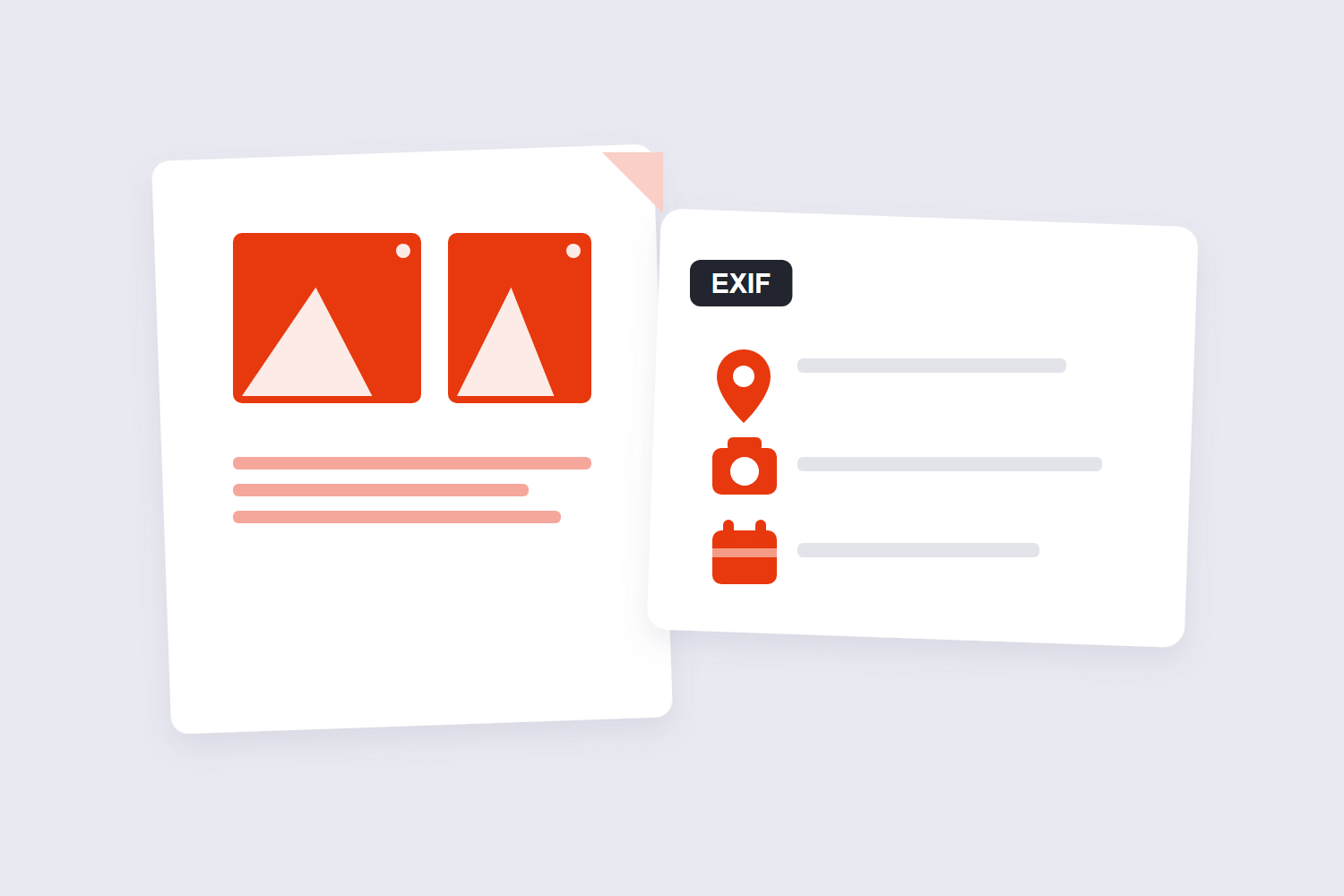
EXIF stands for Exchangeable Image File Format. It’s a metadata standard that cameras, smartphones, and scanners use to embed information directly inside a photo file, most commonly JPEG and TIFF images. PNG and WebP files can carry similar metadata too, though they store it using different internal structures (XMP or text chunks rather than classic EXIF tags).
A typical smartphone photo can include:
- GPS coordinates — latitude and longitude of where the photo was taken, sometimes accurate to a few meters
- Device information — camera or phone make and model
- Timestamp — the exact date and time the photo was captured
- Camera settings — aperture, shutter speed, ISO, focal length
- Orientation and color profile data — used to display the image correctly
- Software tags — which app or editing tool last touched the file
None of this is visible when you simply look at the photo. It sits in the file’s header, readable by anyone who inspects the file properties or runs it through a metadata viewer.
Why Removing EXIF Data Matters
Most of the time, EXIF metadata is harmless — useful, even, for photographers who want to track their own camera settings. The problem shows up when a photo leaves your hands.
A few common scenarios where EXIF data becomes a real privacy concern:
- Posting photos from home. A picture taken in your living room or backyard can embed your home address in the GPS field.
- Selling items online. Marketplace listings often include photos taken at your actual address.
- Sharing photos of children. Location and timestamp data attached to school or park photos can reveal routines and whereabouts.
- Journalists, activists, and people in sensitive situations. Metadata can expose a source’s location or contradict a claimed timeline.
- Freelancers and businesses. Client-facing photos sometimes carry the photographer’s device serial number or internal file paths in software tags.
It’s worth noting that most major social platforms — Facebook, Instagram, and X among them — strip visible EXIF data from photos during upload, mainly to save storage and bandwidth. But that doesn’t mean the metadata disappears entirely from their systems, and it does nothing to protect you when you share a photo directly through email, messaging apps, cloud links, or a marketplace listing, where the original file is usually untouched.
How to Check What’s Hiding in a Photo First
Before you strip anything, it’s worth seeing what’s actually in the file. Uploading a photo to a metadata viewer like Image Metadata shows you every embedded field — GPS coordinates, device details, timestamps, and more — without altering the file. This step matters because not every photo carries the same risk: a screenshot rarely contains GPS data, while a photo straight from a smartphone camera almost always does.
How to Remove EXIF Data Step by Step
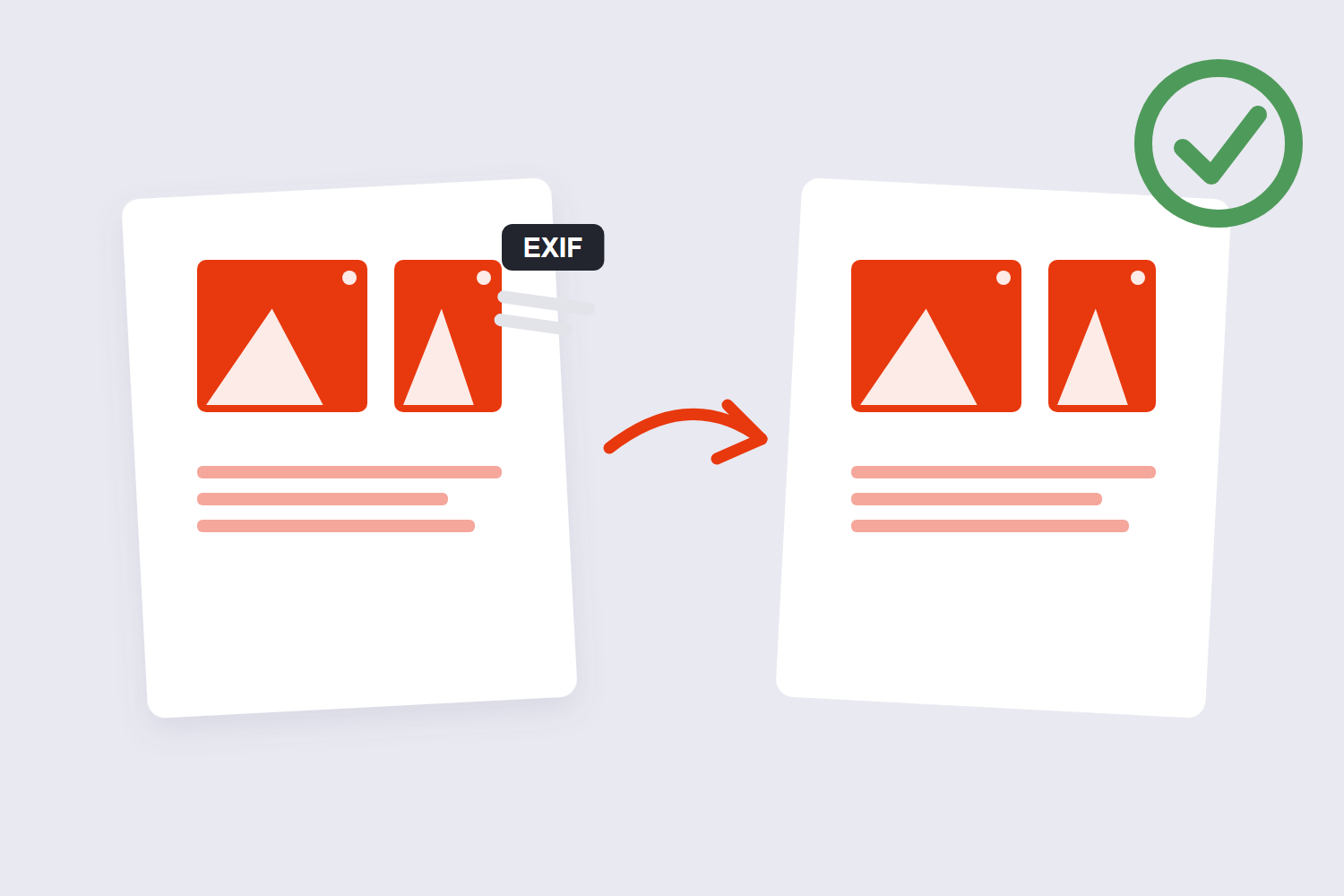
The most straightforward way to clean a photo works the same regardless of what device took it, since it operates on the file itself rather than the camera app.
Step 1: Gather the photos you want to clean
Collect the images on your computer or phone. Every tool accept common formats like JPG and PNG, and many support batches so you’re not doing this one file at a time.
Step 2: Open an EXIF removal tool
An online tool like EXIF Data Remover processes images directly in your browser rather than requiring separate software. Open the tool and you’re ready for the next step.
Step 3: Upload and process your images
Drag and drop your photos, or select them manually. The tool reads and removes embedded metadata such as GPS location, camera model, timestamps, and software tags, while leaving the actual image content untouched.
Step 4: Download the cleaned files
Once processing finishes, download the cleaned copies. If you’re handling a batch, look for an option to download everything as a single ZIP file rather than saving each photo individually.
If you also need to shrink file size for faster uploads, running the cleaned images through Compress Image afterward is a natural next step — just do metadata removal first, since some compression or format-conversion tools can leave certain tags behind if the metadata isn’t already gone.
Removing EXIF Data on Your Device (Built-In Methods)
If you’d rather not use a browser tool, most operating systems have a built-in way to clear at least some metadata.
Windows
Right-click the photo in File Explorer and choose Properties, then open the Details tab. At the bottom, click Remove Properties and Personal Information. Choose to create a copy with all possible properties removed, or manually select which fields to strip.
Mac
Open the photo in Preview, go to File > Export, and check the export options. Preview’s export process can drop most metadata, though for full control over exactly which fields are removed, a dedicated tool gives more predictable results.
iPhone
When sharing a photo through Messages, Mail, or AirDrop, tap the Share button, then Options at the top of the share sheet, and toggle Location off. This removes GPS data from that specific share, but it does not strip the rest of the EXIF data (camera model, timestamp, and settings remain in the file itself).
Android
In the Google Photos or Gallery app, open the photo, tap the three-dot menu, and select Details or Edit to remove location data. Coverage varies by device manufacturer, so results aren’t always consistent across brands.
Comparing Your Options
| Method | Removes GPS Data | Removes Full EXIF (camera, timestamp, etc.) | Works in Bulk | Best For |
|---|---|---|---|---|
| Online EXIF remover tool | Yes | Yes | Yes, every tool support batches | Anyone who wants a complete, repeatable clean |
| Windows File Explorer | Yes | Yes (with “remove all” option) | One file at a time in most cases | Quick one-off cleanup on a PC |
| Mac Preview export | Partial, varies by export settings | Partial | No | Occasional single-photo edits |
| iPhone share sheet toggle | Yes, for that share only | No, other fields remain | Yes, per share action | Fast location-only removal before sending |
| Android Gallery/Photos details | Yes, on supported devices | Varies by manufacturer | No | Quick location removal on the go |
Best Practices When Removing Metadata
- Check before you clean. Not every photo needs stripping — a graphic you designed from scratch likely has no GPS data. Screenshots and scanned documents behave differently from smartphone camera photos.
- Keep an original copy. If you might need the metadata later — for organizing a photo library by date or location, for instance — save an unedited original in a private folder before cleaning the version you’ll share.
- Disable location tagging at the source. On iPhone, go to Settings > Privacy & Security > Location Services > Camera and set it to Never. On Android, check your camera app’s settings for a location tag toggle. This stops GPS data from being embedded in the first place, rather than cleaning it up after the fact.
- Remember orientation and color data usually stay. Good EXIF removal tools preserve the fields that affect how the image displays correctly (like orientation) while dropping the fields that expose personal information.
- Treat this as privacy hygiene, not a forensic guarantee. Removing EXIF data closes an obvious, common leak, but it isn’t a substitute for broader precautions if you’re dealing with a genuinely high-risk situation, such as protecting a source’s safety.
Common Mistakes to Avoid
- Assuming social media handles it for you. Platforms often strip visible EXIF data on their end, but that’s inconsistent across platforms and doesn’t help with direct messaging apps, email, or cloud sharing links.
- Only removing GPS data. Location is the biggest risk, but device model, software tags, and timestamps can also reveal more than intended when pieced together with other information.
- Editing the photo and assuming metadata is gone. Cropping or applying a filter doesn’t necessarily strip EXIF data — some editing apps preserve it by default or even add their own tags.
- Forgetting about older, already-shared photos. If you’ve been posting photos with metadata intact for years, going forward is a good habit, but it won’t retroactively clean what’s already public.
- Converting file format without checking metadata. Not every format conversion strips all metadata by default, so it’s worth verifying the result with a metadata viewer, especially if privacy is the whole point. If you do need to change formats, tools like Convert Image handle the conversion, and you can confirm the output is clean with the metadata viewer afterward.
Frequently Asked Questions
Does removing EXIF data reduce image quality?
No. EXIF data is separate from the actual pixel information in a photo. Removing it strips the metadata header, not the image itself, so visual quality stays the same. File size may change slightly, but that’s due to the metadata being removed, not the image being re-compressed.
Do Instagram, Facebook, and other social platforms remove EXIF data automatically?
Most major platforms strip at least some EXIF data, including GPS coordinates, from photos during upload, primarily to reduce file size. However, this varies by platform and isn’t guaranteed for every field. It also doesn’t protect photos you share outside those platforms, such as through email, messaging apps, or direct file transfers.
Can I remove EXIF data from a photo on my phone without any extra apps?
Partially. iPhone lets you turn off location sharing for an individual share through the Share Sheet’s Options menu, and many Android Gallery apps offer a similar location-removal option under photo details. Neither of these built-in options reliably strips every EXIF field, such as camera model or timestamp, the way a dedicated metadata removal tool does.
Is EXIF data the same as the metadata in PNG or WebP files?
Not exactly. JPEG and TIFF files use the EXIF standard directly. PNG and WebP files can carry similar metadata, like timestamps or software tags, but they store it in different internal formats, such as text chunks. The privacy risk is comparable, and metadata removal tools that support these formats will still strip the equivalent fields.
Will removing EXIF data affect how my photo displays or rotates?
It shouldn’t, if you use a tool designed for this purpose. Orientation data tells devices which way is “up” for the photo, and reliable EXIF removal tools account for this so the image still displays correctly after cleaning, even though the metadata tag itself is gone.
Should I remove EXIF data from every photo I share online?
It’s a reasonable default for photos taken with a smartphone or camera, especially ones with location services enabled. It matters less for graphics you created digitally, screenshots, or images with no GPS or personal device data attached in the first place. Checking a photo’s metadata before sharing takes only a moment and removes the guesswork.
Can I remove EXIF data from multiple photos at once?
Yes. Most online EXIF removal tools support batch processing, letting you upload several images and clean them all in one pass rather than handling each file individually. This is especially useful before uploading a batch of product photos or listing images.
Does removing EXIF data protect me from all forms of photo tracking?
No. EXIF removal addresses metadata embedded directly in the file, which is the most common and easily accessible source of location and device information. It doesn’t address other tracking methods, such as information a platform collects separately when you upload a file, or details visible within the image itself, like a street sign or landmark in the background.
Final Thoughts
EXIF metadata isn’t inherently dangerous, but it’s the kind of thing that’s easy to forget about until it causes a problem. A quick check before sharing, selling, or publishing a photo costs almost nothing and closes off one of the more common ways personal information ends up somewhere it shouldn’t. If you want to see exactly what’s hiding in a file before deciding what to do with it, start with Image Metadata to inspect it, then run it through EXIF Data Remover to clean it up in a few seconds.
Once the metadata is gone, a visible watermark adds a second layer of protection for images you publish — see how to watermark photos without ruining them.
